
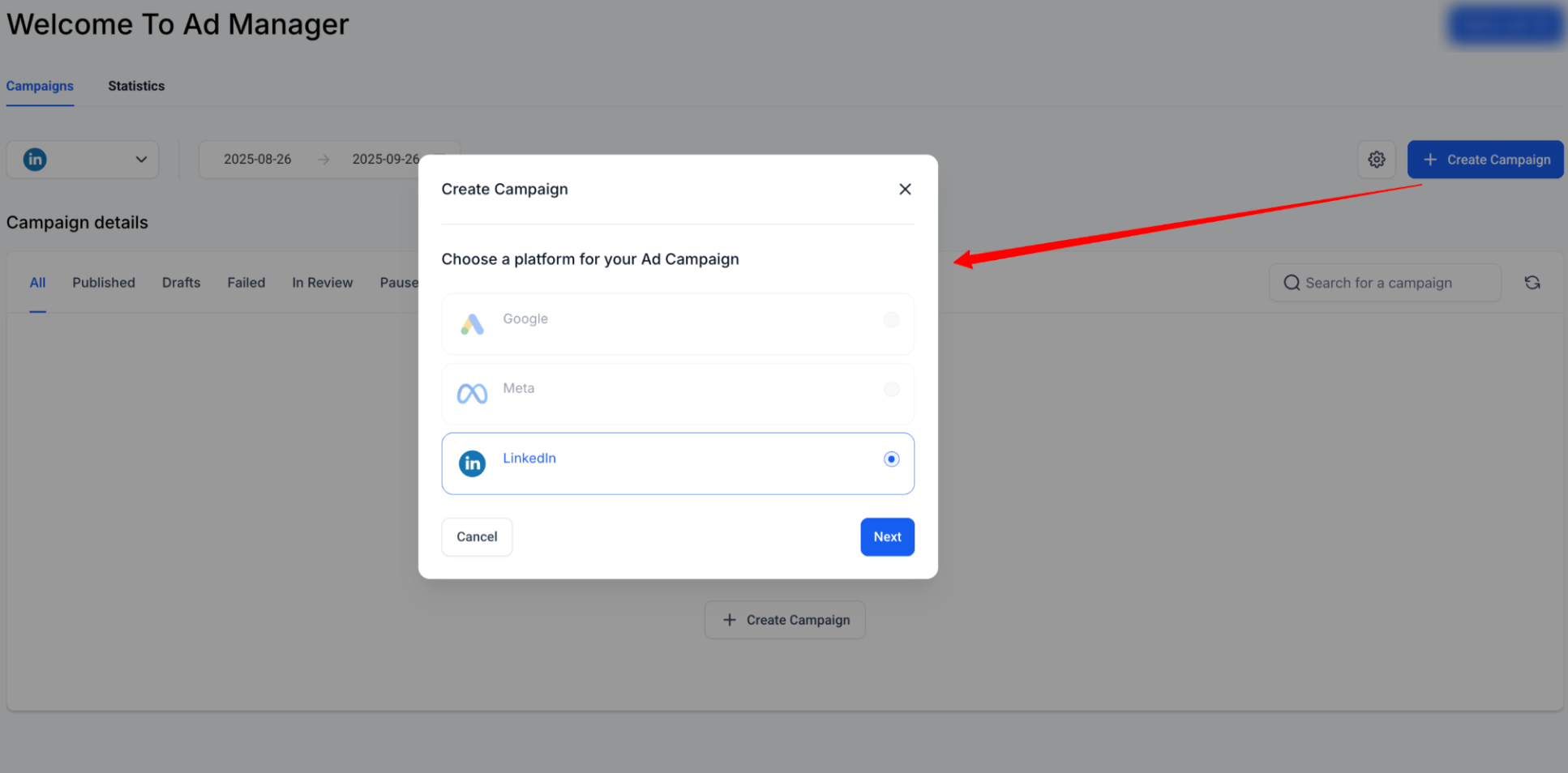
Create a LinkedIn ad campaign in Ad Manager
Ad Manager organizes LinkedIn advertising into a three-level hierarchy:
Campaign Group, The top-level container for related campaigns.
Campaign, Defines the audience, media type, language, location, and other campaign settings.
Ad, Defines the creative, including media, text, calls to action, and forms.
This guide explains how to create a Campaign Group, add campaigns, build ads, and review performance after publishing.
Use a Campaign Template
LinkedIn campaigns can also be created from an Ad Manager template.
Select Ad Manager Templates, choose a LinkedIn template, review its details, and click Continue. Supported campaign configurations are pre-filled from the selected template.
Step 1: Create a Campaign Group
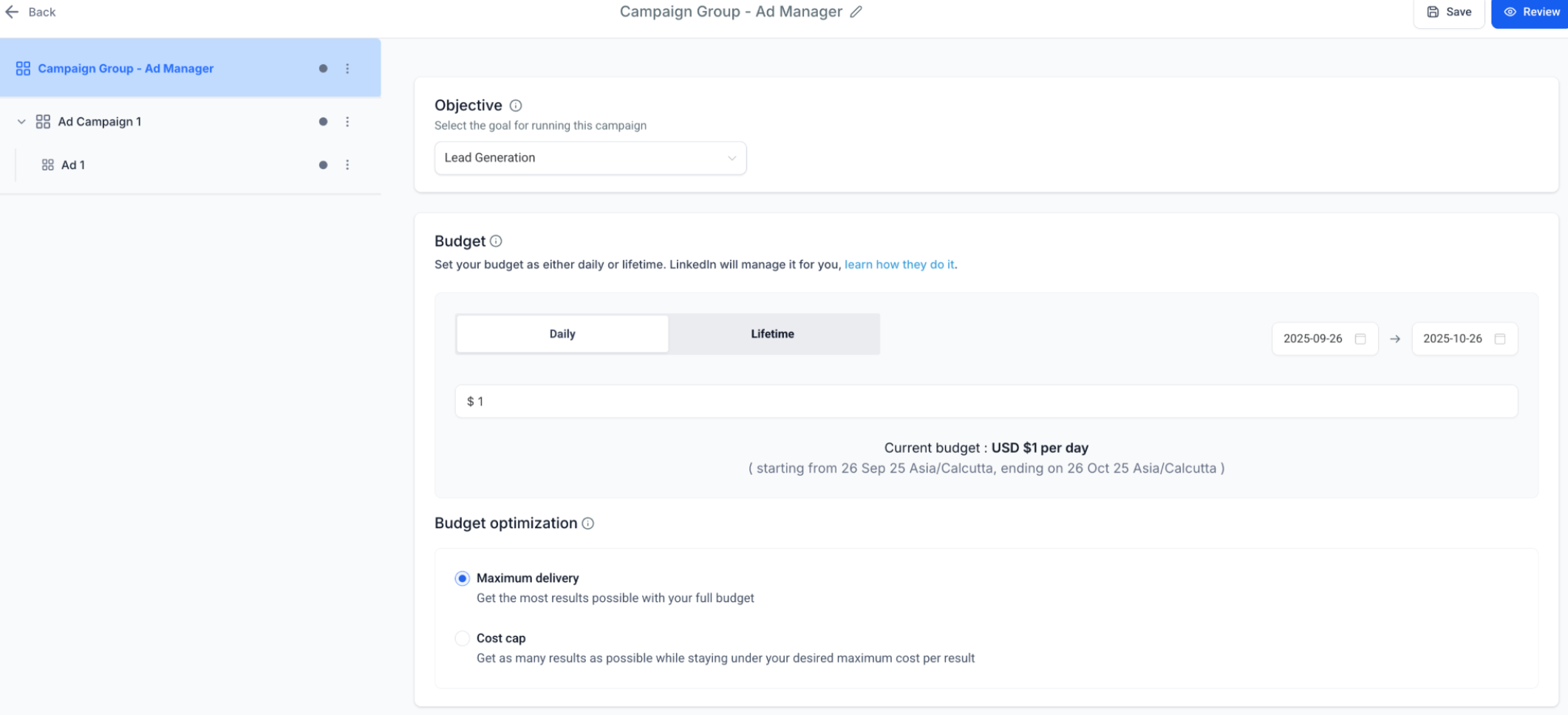
A Campaign Group is the top-level container for your LinkedIn campaigns.
Configure the following:
Campaign Group Name, Enter a descriptive name, such as “Q4 Leads.”
Objective Selection, Choose one of the supported objectives:
Lead Generation, Capture leads with LinkedIn forms.
Website Traffic, Drive clicks to an external landing page.
Schedule, Set the start and end dates for the Campaign Group.
Tip: Use Campaign Groups to organize campaigns by business objective.
Step 2: Create a Campaign Inside the Group
After creating the Campaign Group, add one or more campaigns.
Fields Defined at Campaign Level
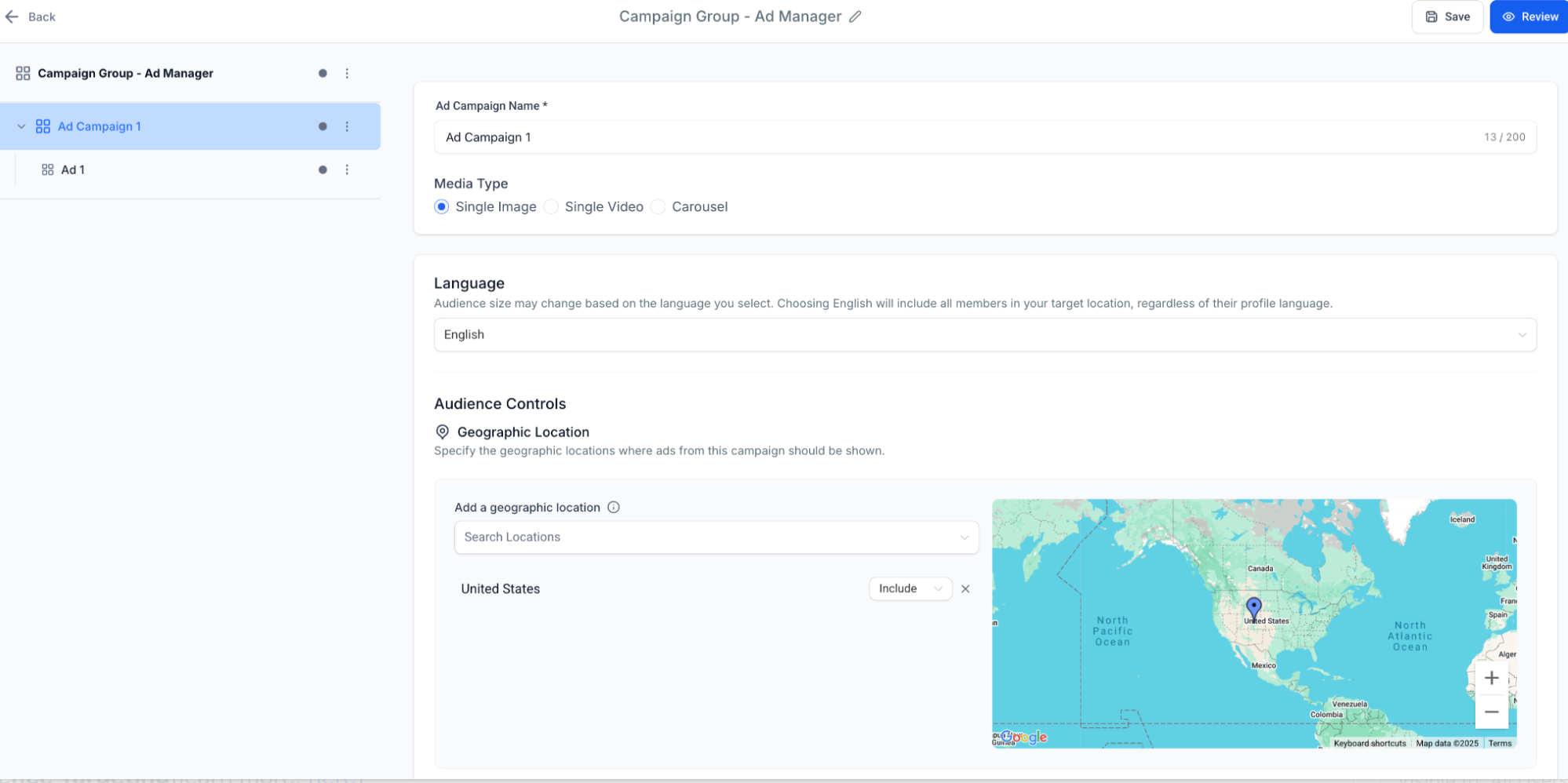
Configure the following campaign settings:
Campaign Name, The name used to identify the campaign.
Media Type, Select single image, video, or carousel.
Language
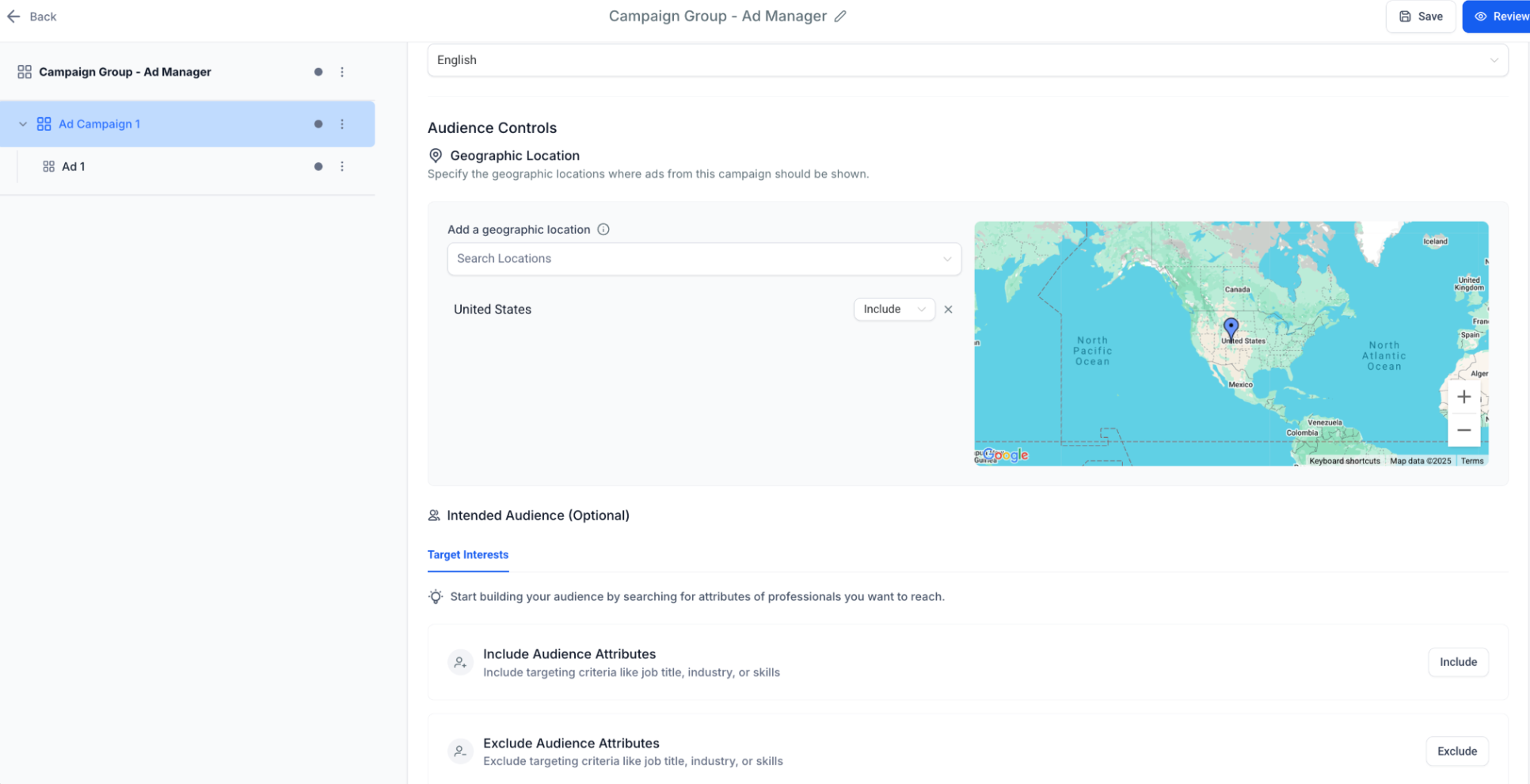
Geographic Location
Intended Audience, Optional.
Audience Targeting
Audience targeting determines who can see your LinkedIn ads.
Required Targeting
Location, Include or exclude geographic locations.
Optional Filters
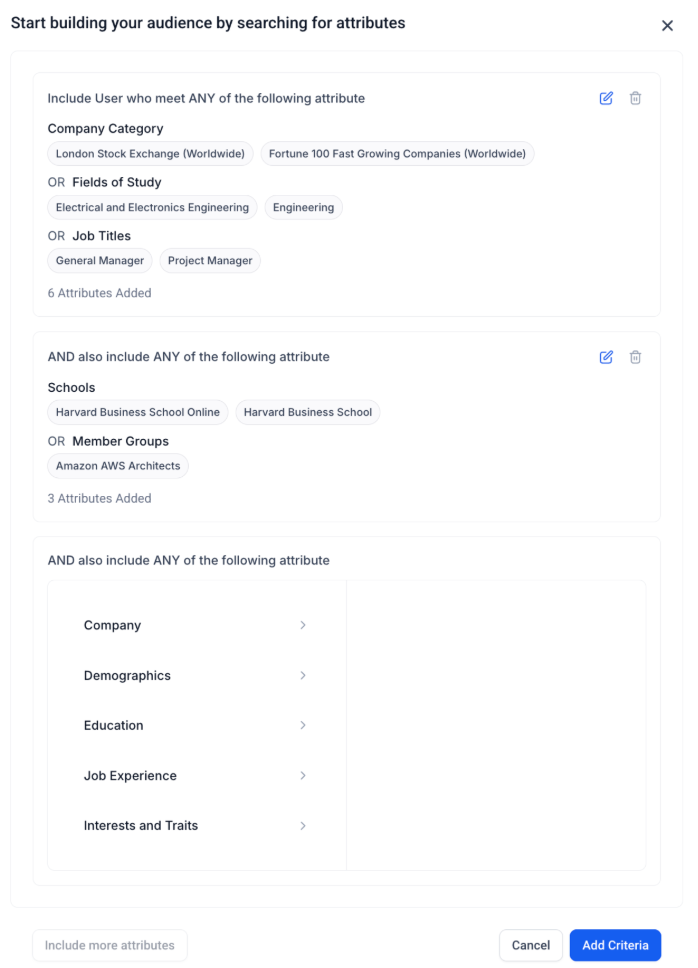
Available targeting attributes include:
Job Title
Industry
Company Size
Seniority
Skills
Education
Interests & Traits
Logic Builder
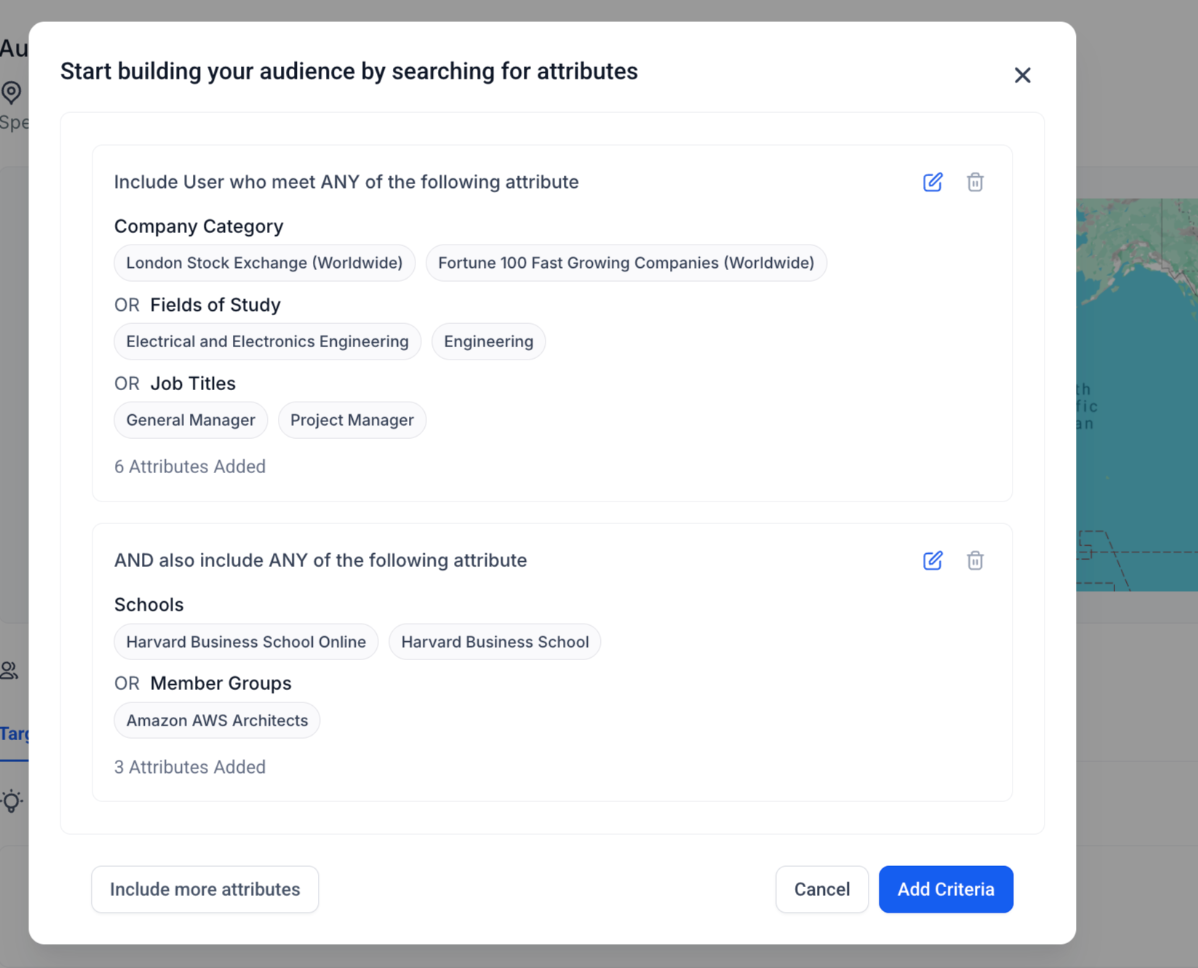
You can further refine targeting by combining attribute groups:
Add up to 3 attribute groups.
Use OR logic within a group.
Use AND logic between groups.
Include and exclude targeting attributes.
For example:
Group 1: Job Title = Marketing Manager OR Director
Group 2: Industry = Healthcare
Exclude: Interns
Step 3: Create Ads Inside the Campaign
Each campaign can contain multiple ads.
Fields Defined at Ad Level
Configure the following:
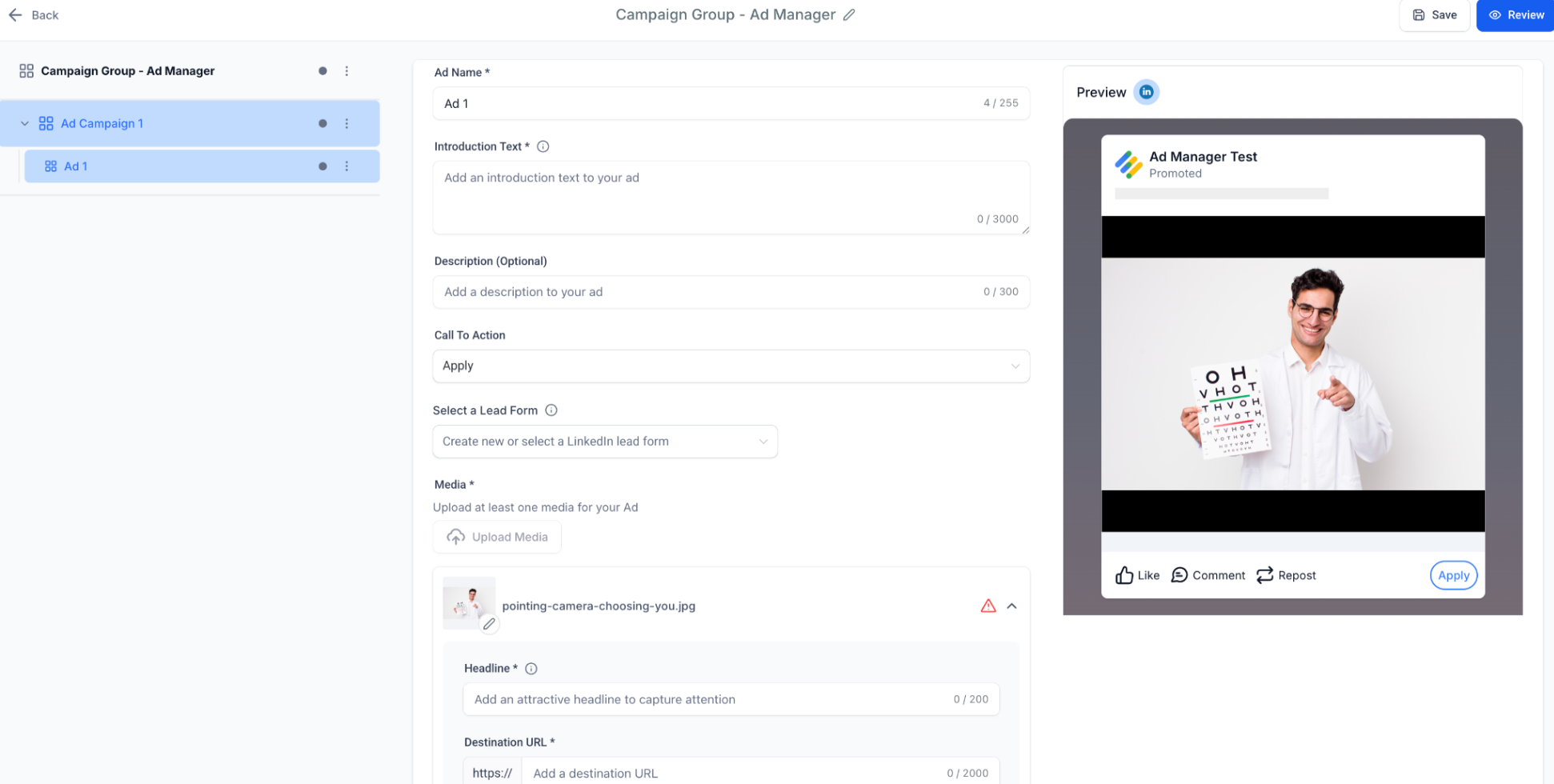
Ad Name, An internal identifier for the ad.
Media Type, Uses the media type selected at the campaign level.
Supported media types include:
Single Image Ad: Upload one image for the ad.
Single Video Ad: Upload one video for the ad.
Carousel Ad: Create multiple cards. Each card can include:
Headline
Image or video
Destination URL
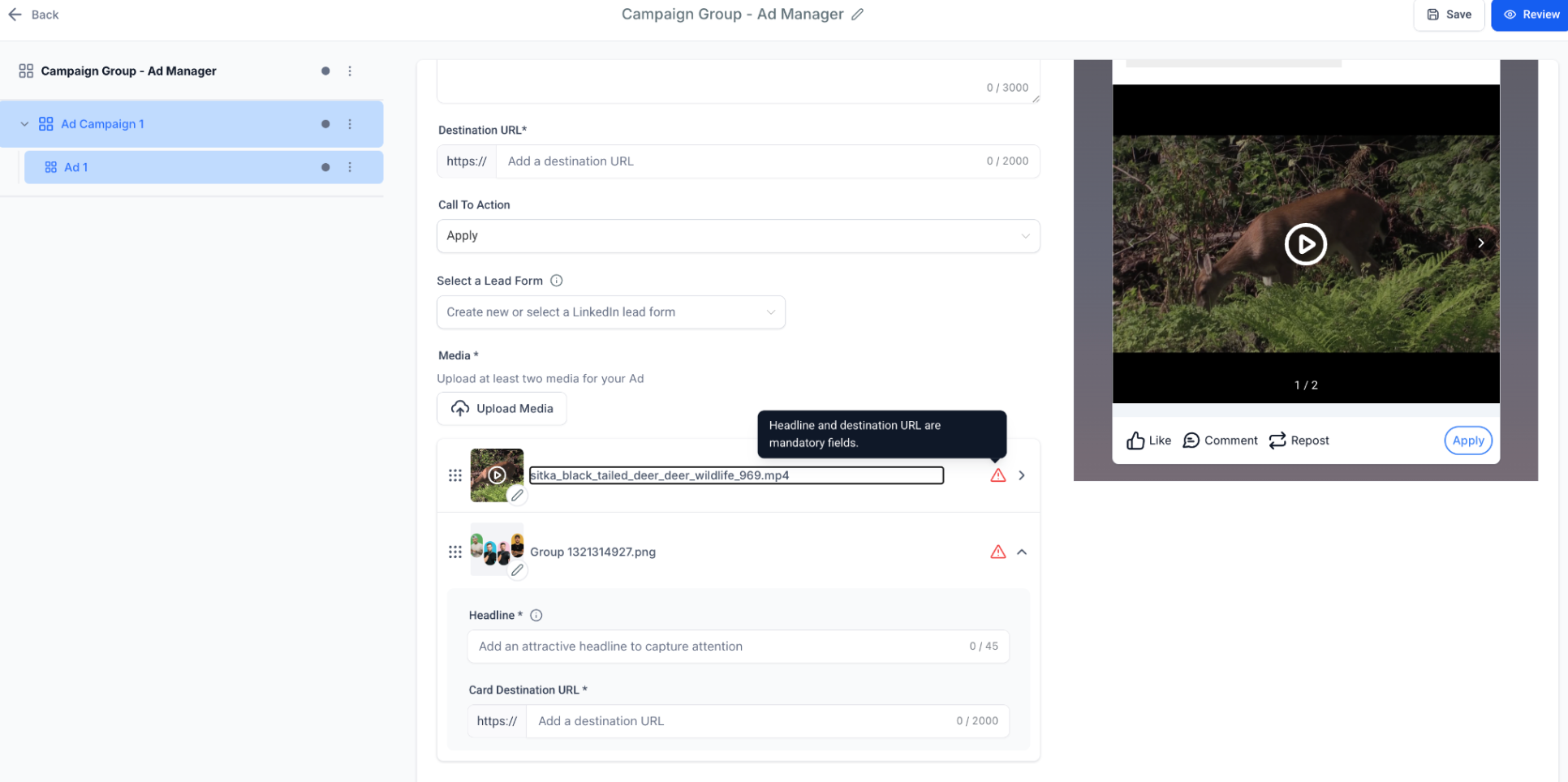
Creative Fields
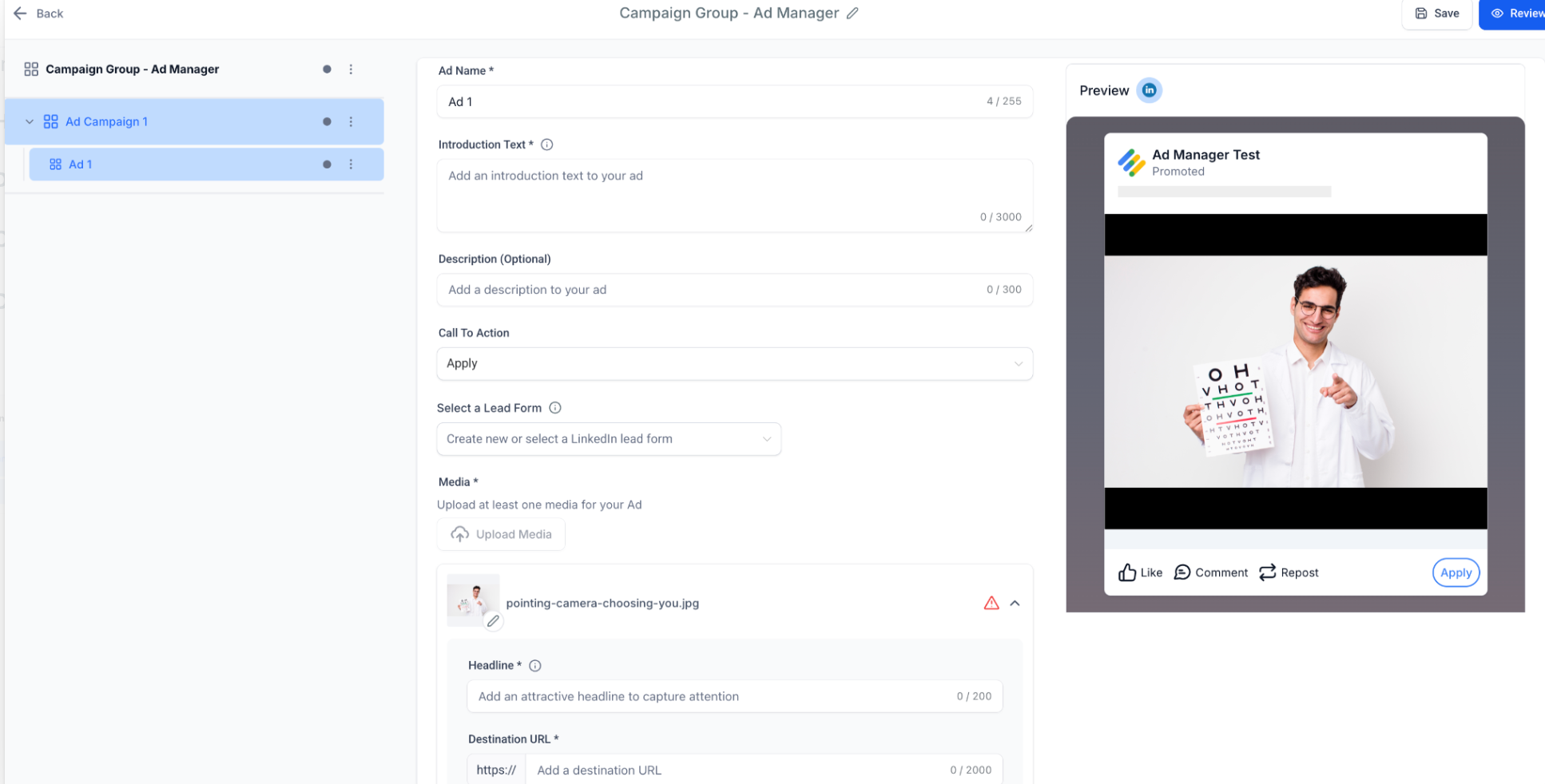
Configure the content displayed in your ad:
Introduction Text, Up to 3,000 characters.
Headline, Up to 70 characters. This field is required.
Description, Up to 300 characters. This field is optional.
Call-to-Action, Select an available LinkedIn CTA, such as Learn More, Download, or Apply.
Destination URL, Required for all ads. If the URL does not include a protocol,
https://is automatically added.
Lead Gen Forms
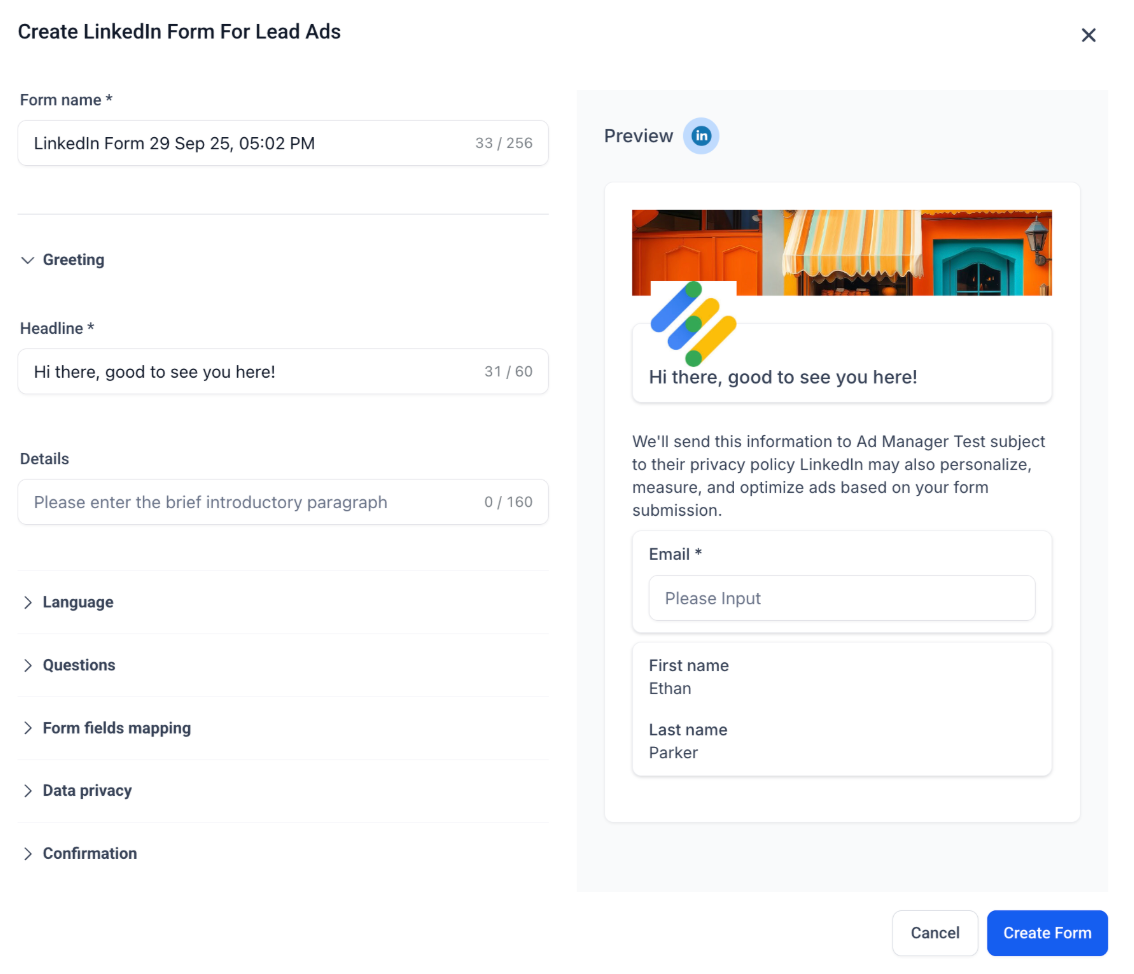
If you selected Lead Generation as the campaign objective, configure a LinkedIn Lead Gen Form.
Available fields include:
Form Name, Automatically generated and editable.
Headline & Description, Displayed prominently in the form.
Pre-filled Fields, Add up to 12 fields, such as Name, Email, and Job Title.
Custom Questions, Add up to 3 short-answer or multiple-choice questions.
Hidden Fields, Add up to 20 hidden fields, such as UTM tags or campaign IDs.
Privacy Section, Add the required privacy URL and optional disclosure text.
Consent Checkboxes, Add up to 5 consent checkboxes.
Confirmation Page, Configure a thank-you message and an optional CTA, such as Visit Website, Download, or Call.
For detailed instructions, see How to create a LinkedIn lead form in Ad Manager.
Step 4: Review & Publish
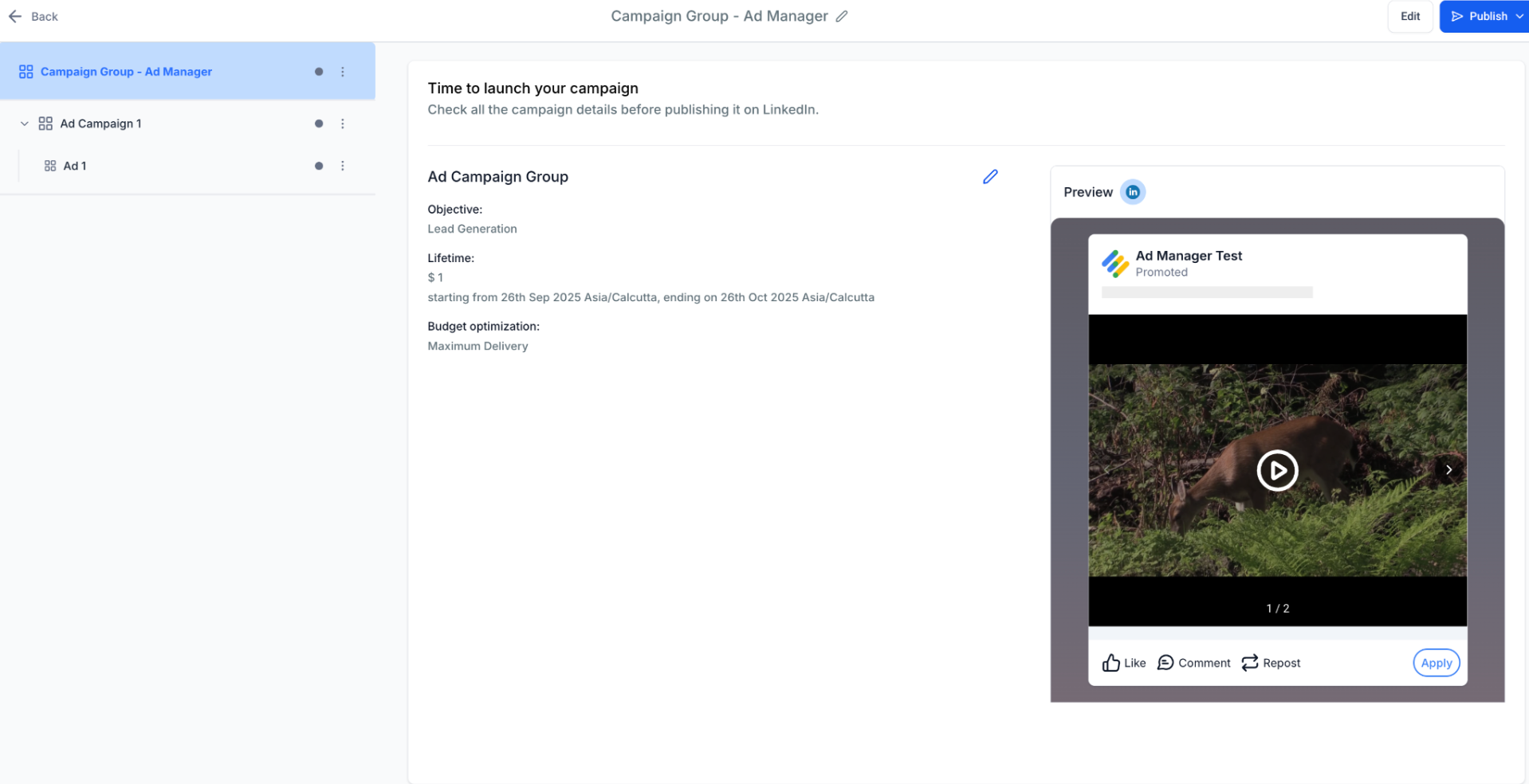
Before publishing the campaign, review its configuration on the Review & Publish screen.
Review:
Campaign objective
Schedule
Optimization mode
Full creative preview for desktop and mobile
Ad Manager also validates the campaign before publishing. Validation checks include:
Required fields are completed.
Destination URLs are valid.
Resolve any validation issues before publishing the campaign.
Step 5: View Campaign Group Performance
After publishing, navigate to Statistics > LinkedIn to review campaign performance.
You can analyze results at different levels:
Campaign Group Level, Review metrics such as impressions, clicks, and CTR.
Campaign Level, Review conversions and audience effectiveness.
Ad Level, Review creative performance using metrics such as CTR and conversions.
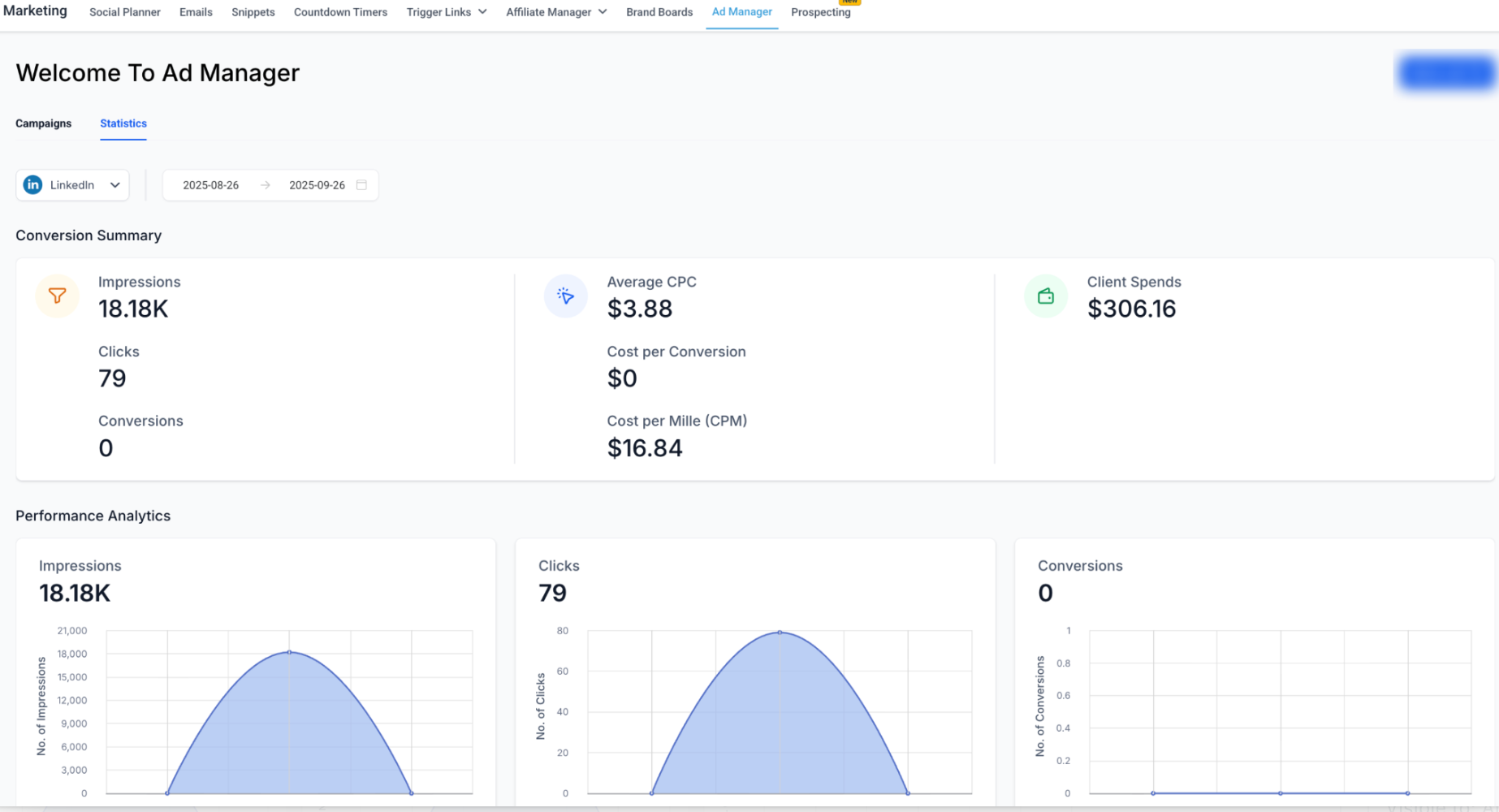
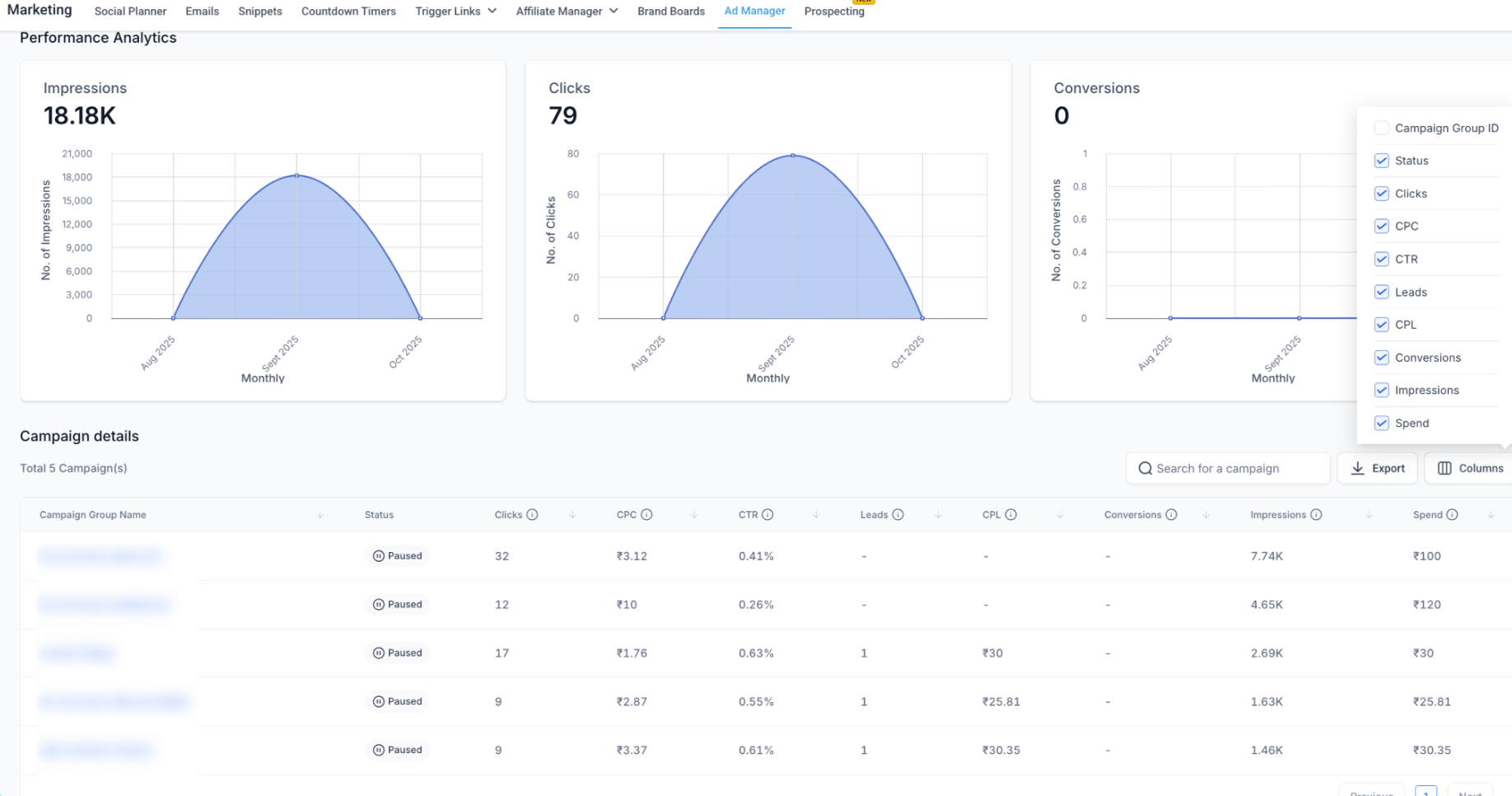
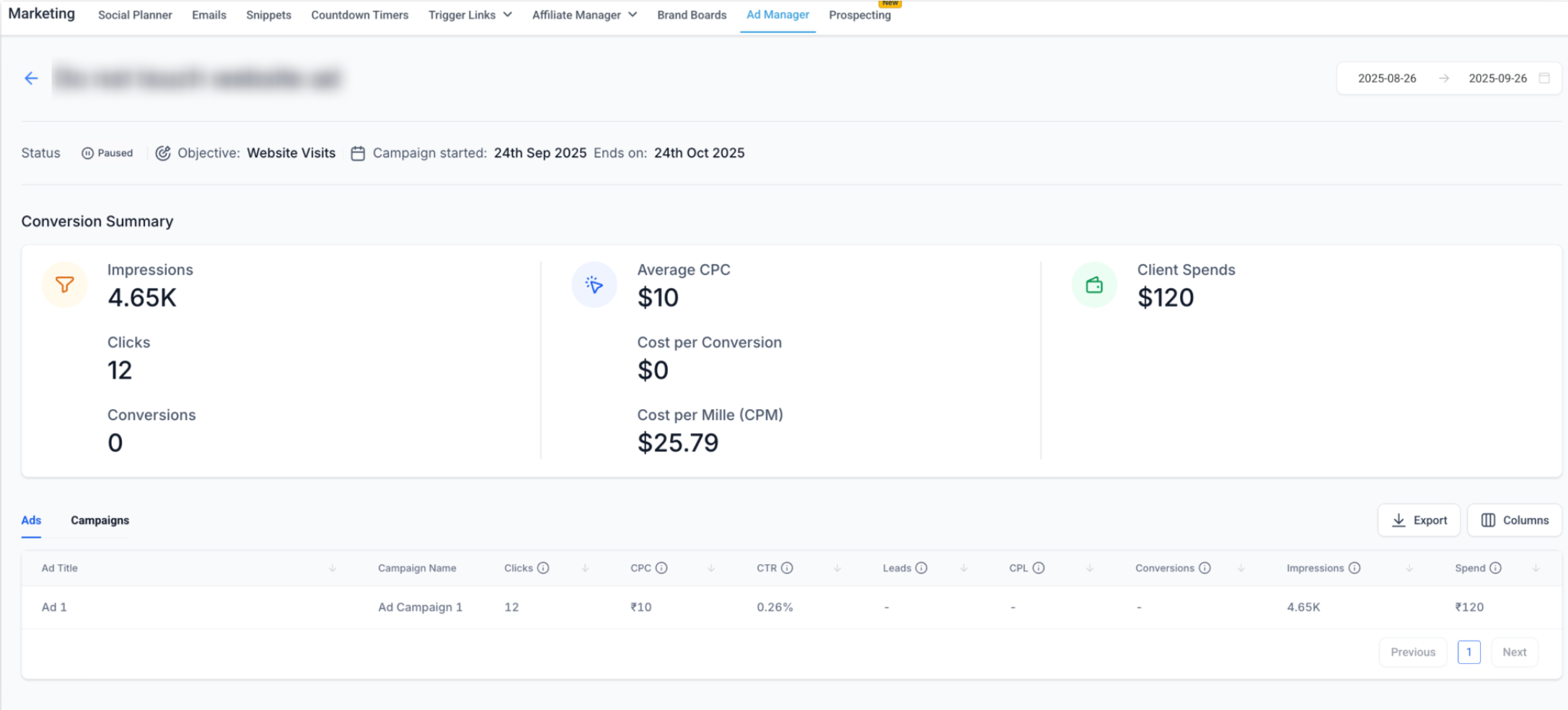
For more information about available metrics, see Understanding LinkedIn statistics in Ad Manager.
Best Practices
Organize by business objective, Group related campaigns based on their intended goal.
Keep campaigns focused, Use one audience definition for each campaign.
Use multiple ads, Run multiple ads within a campaign to compare creative performance.
Start broad and refine, Begin with broader audience targeting, then refine it with relevant filters.
Keep Lead Gen Forms concise, Shorter forms can reduce the amount of information users must provide.
Use UTM tagging for Website Traffic campaigns, Add UTM parameters to support external analytics and attribution.