

How to Enable WhatsApp in your account?
WhatsApp Business Integration Guide
Connect your WhatsApp Business account to Open Doors. Choose the method that fits your situation.
Choose Your Method
1 Connect Your Existing WhatsApp Business AppKeep using your existing app alongside the platform (Coexistence) 2 Connect a New WhatsApp Business NumberStarting fresh with a brand-new number 3 Migrate from an Existing BSPSwitch from another Business Solution Provider Method 1 Connect Your Existing WhatsApp Business AppUnsupported CountriesThe Coexistence feature is not available for phone numbers from Nigeria or South Africa.1
Start the Signup Process
Navigate to Settings > WhatsApp and select Connect your WhatsApp.
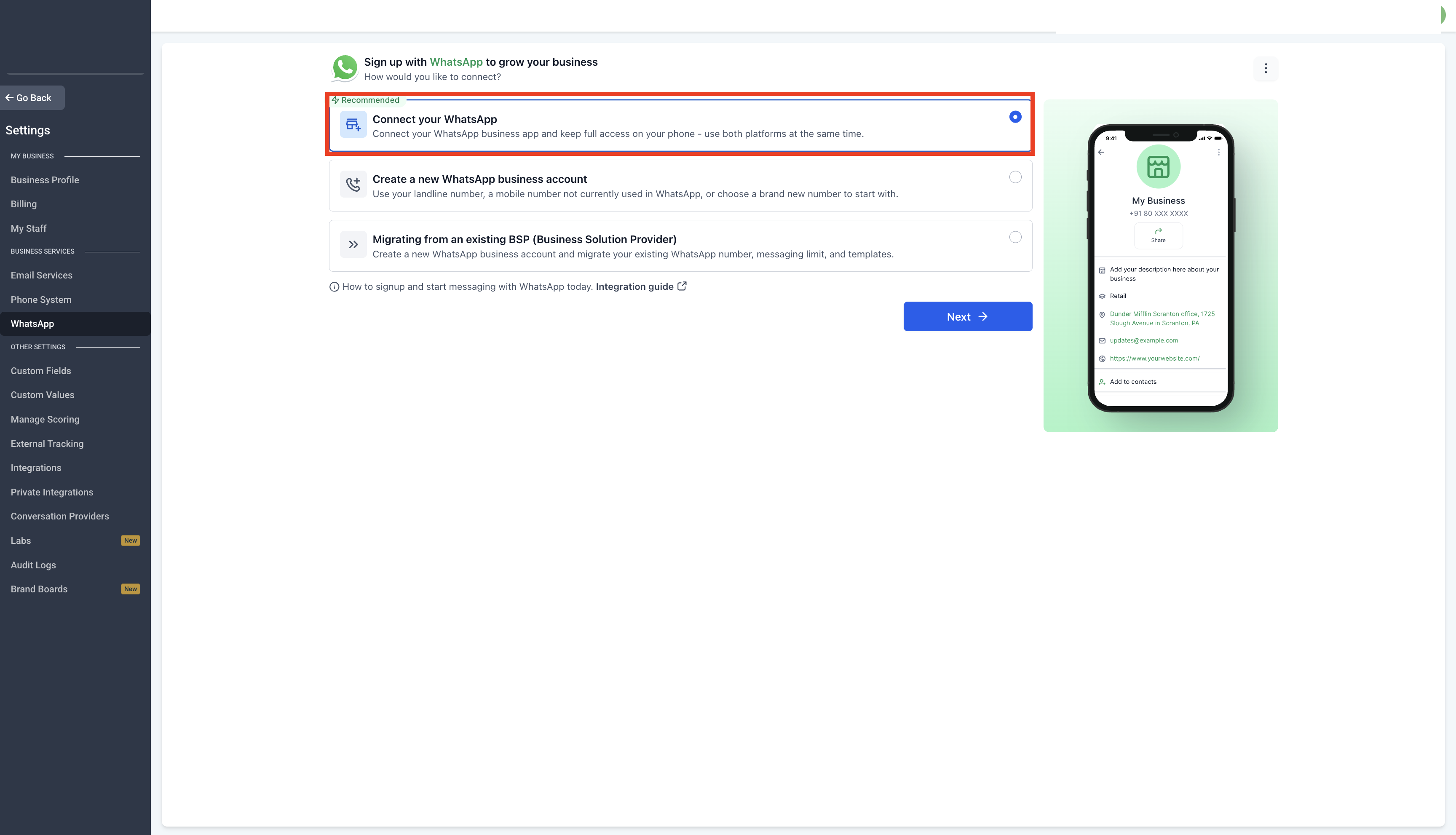 2
Continue with Signup
Follow the on-screen instructions to begin the registration process.
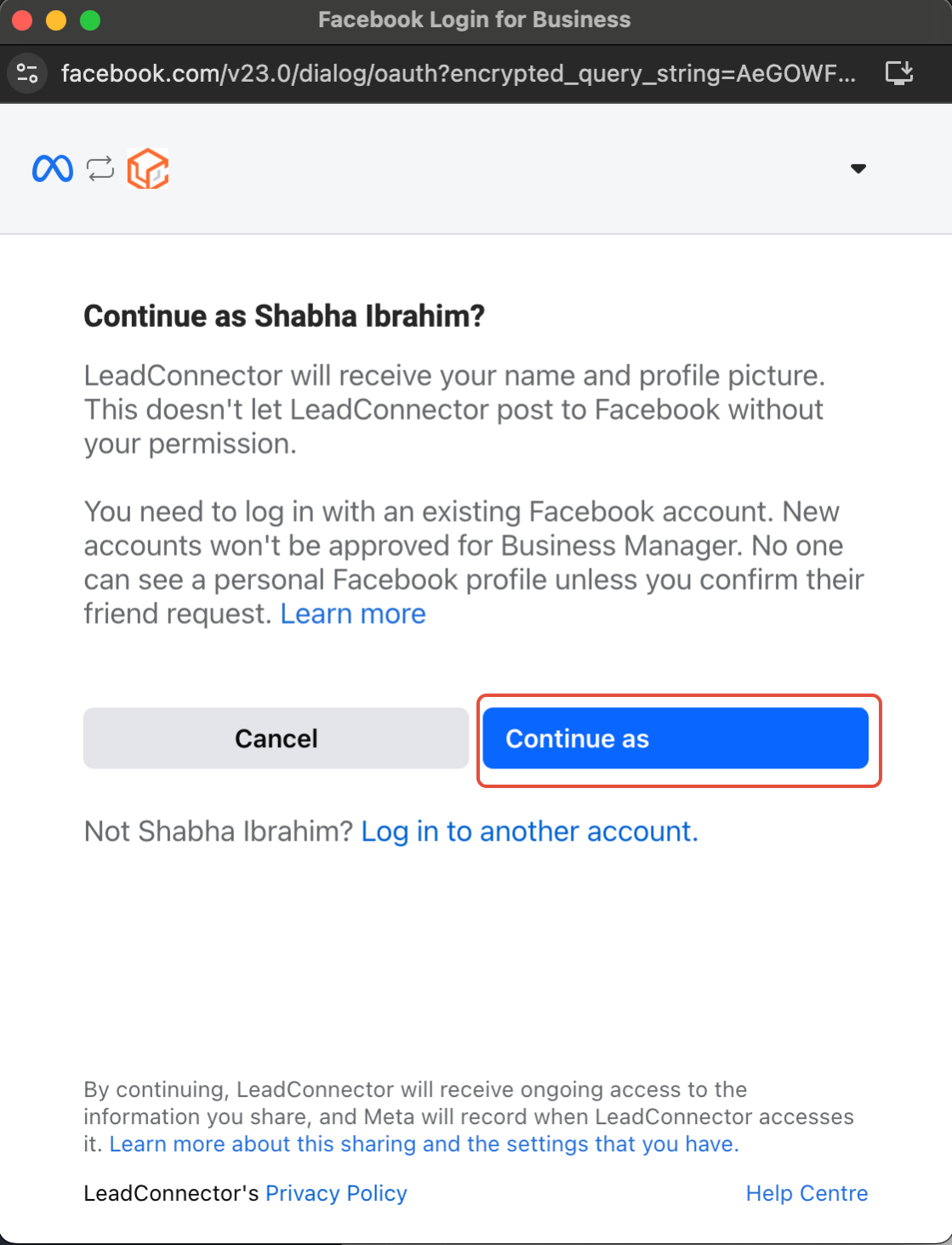 3
Connect to Open Doors
Click Continue to proceed with the integration.
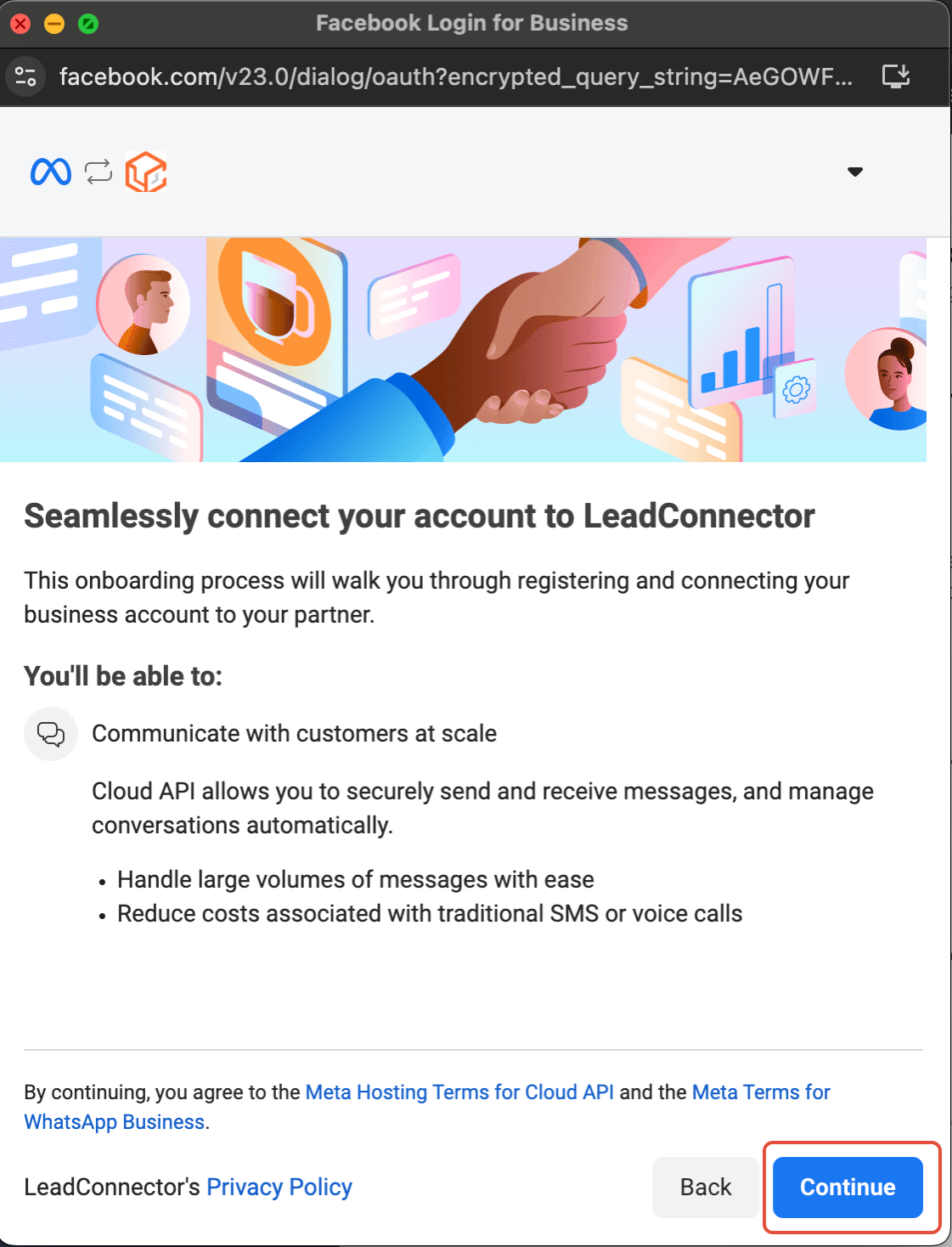 4
Select WhatsApp Business App
Click Connect a WhatsApp Business App, then tap Next.
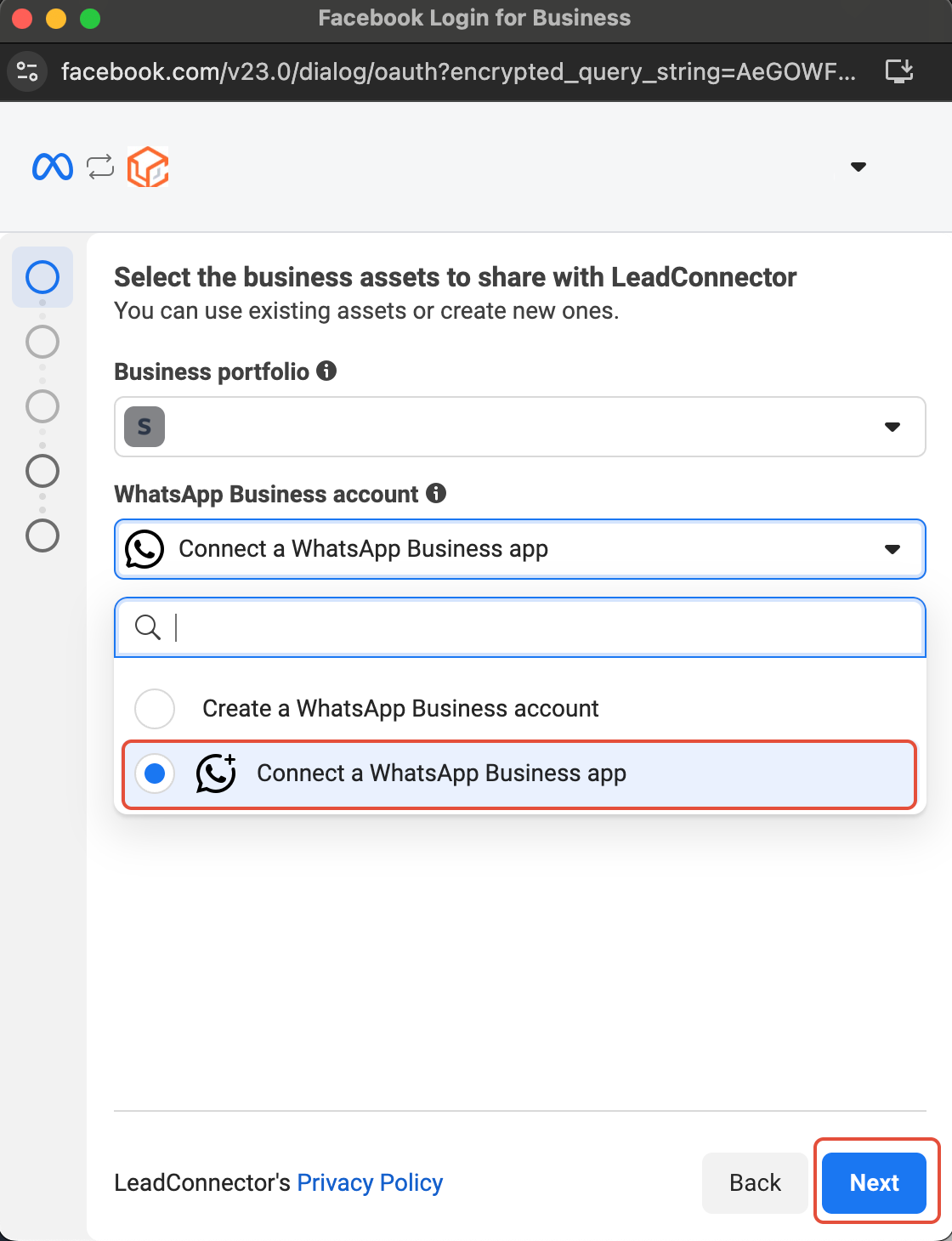 5
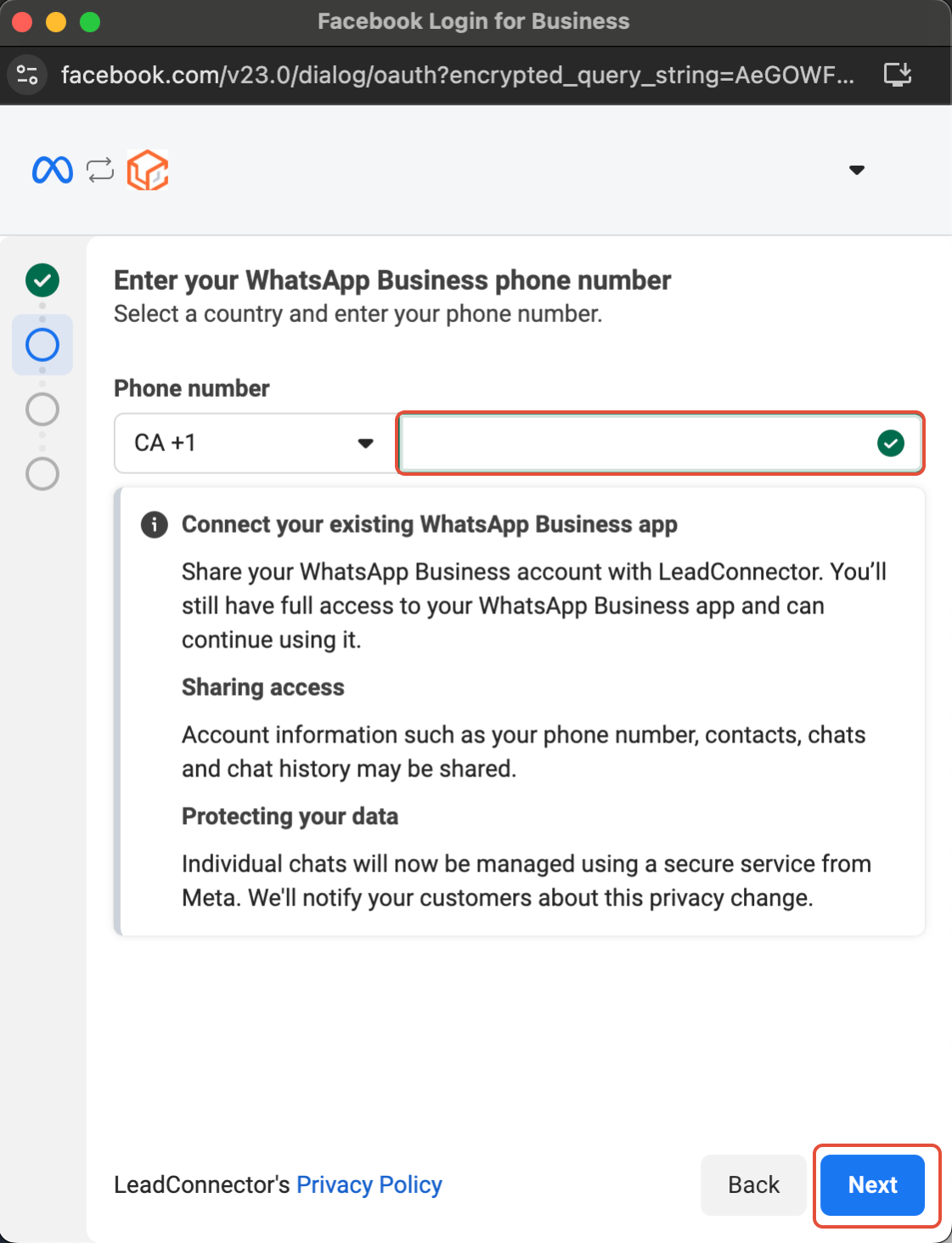
Enter Your Phone Number
Add your WhatsApp Business phone number and tap Next.
 6
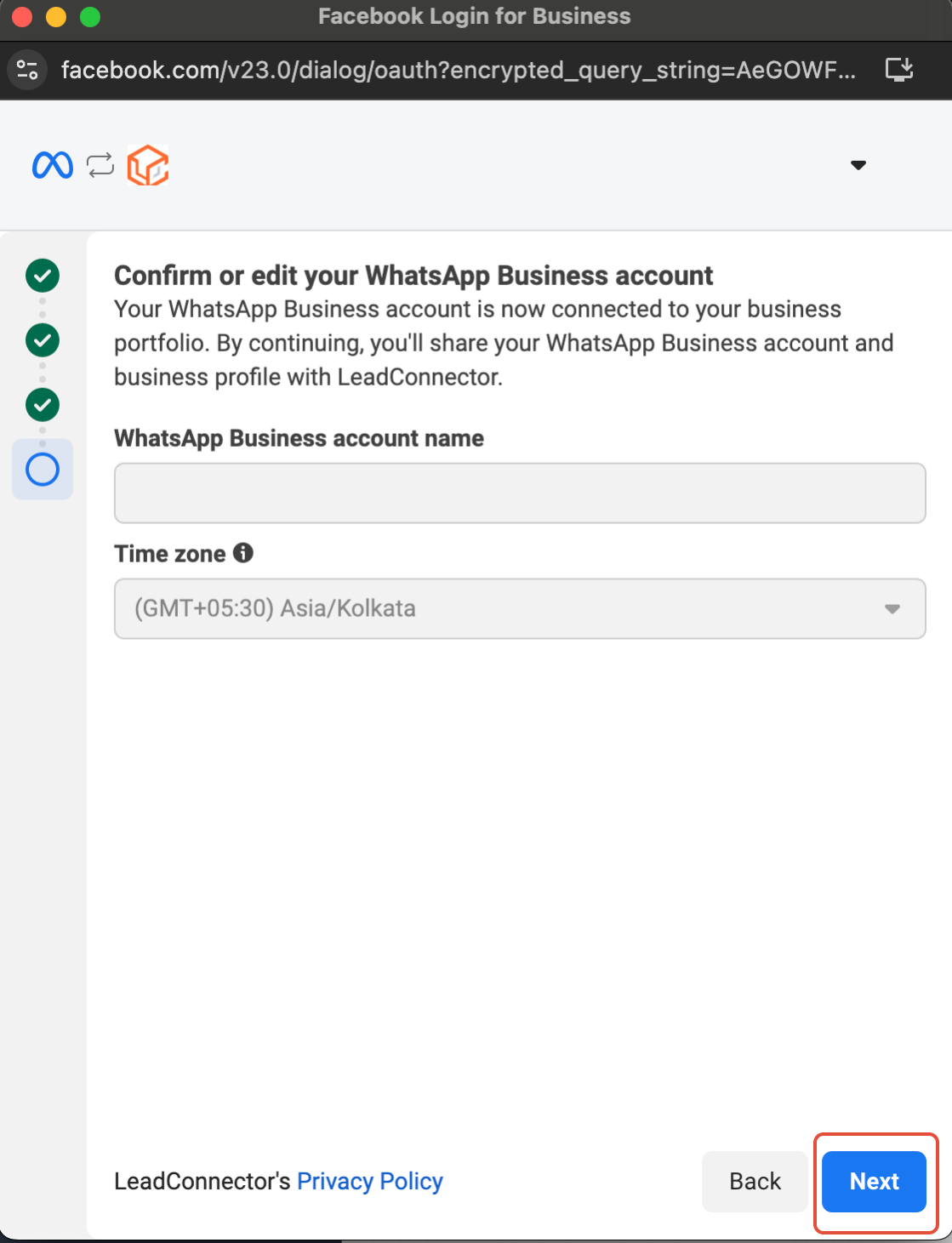
Verify Your Account Details
Review your WhatsApp Business Account details and make any corrections before proceeding.
 7
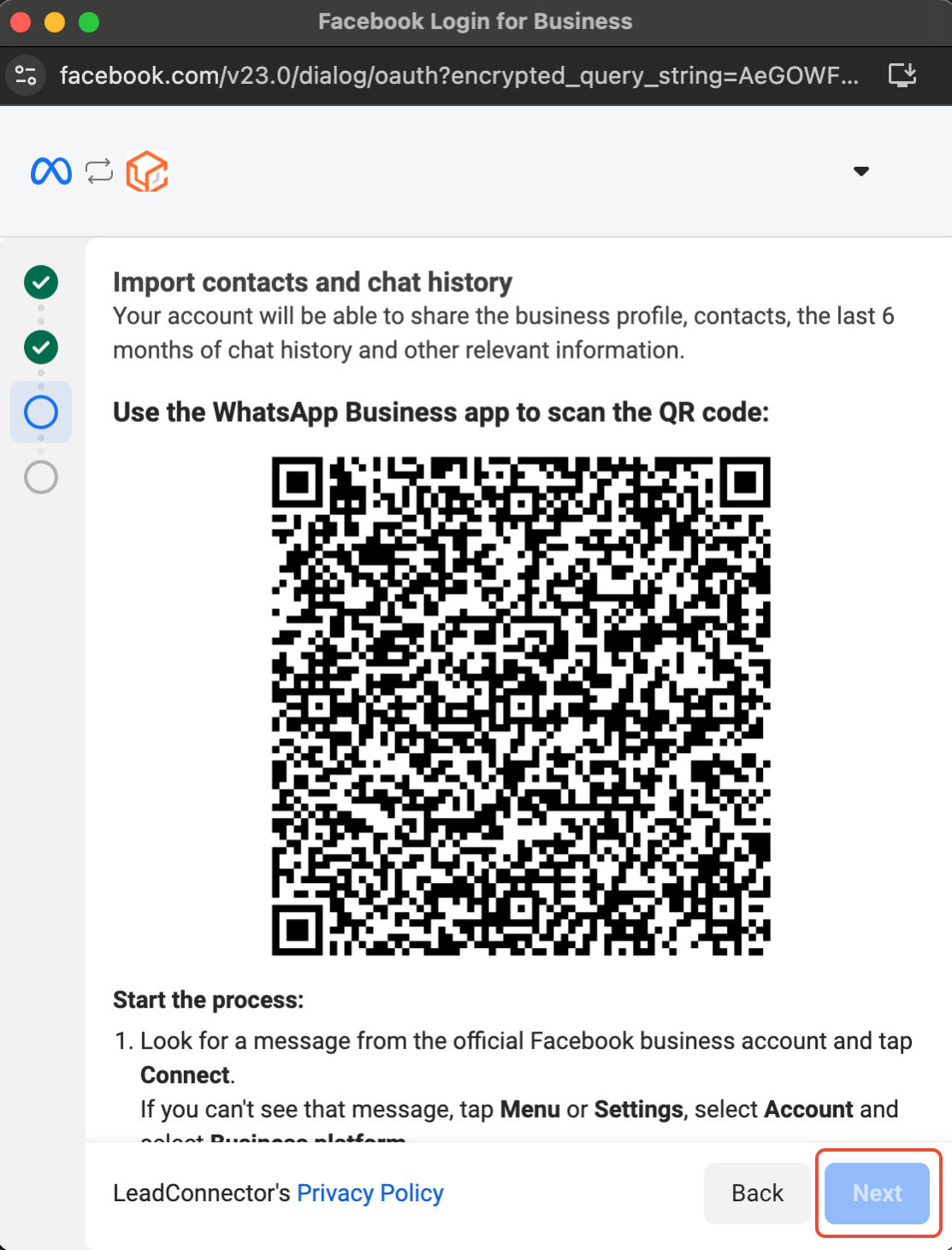
Import Contacts & Chat History
Import contacts and up to six months of chat history from the WhatsApp Business App into Open Doors.
- Update your WhatsApp Business App to the latest version before this step.
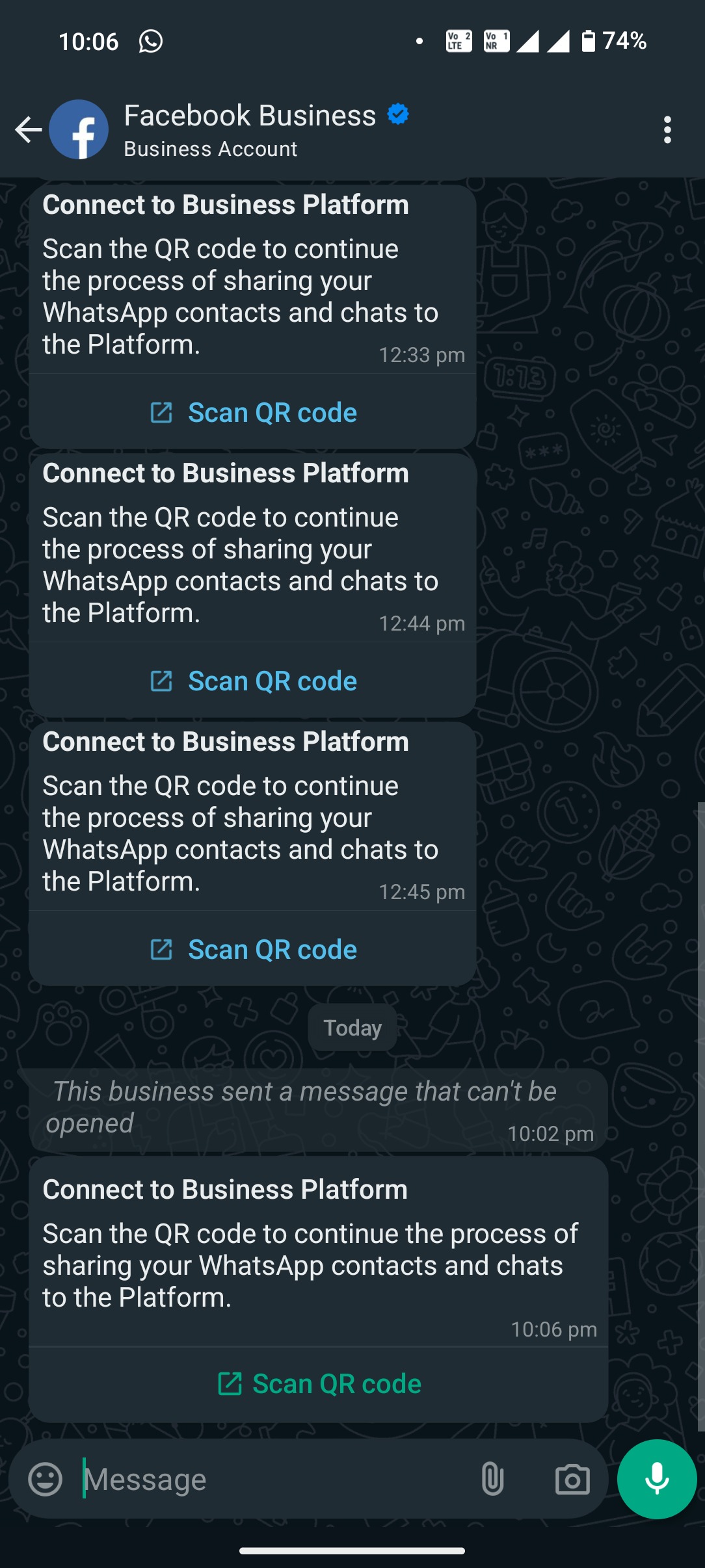
- Look for a message from the official Facebook Business account and scan the QR code when prompted.
 8
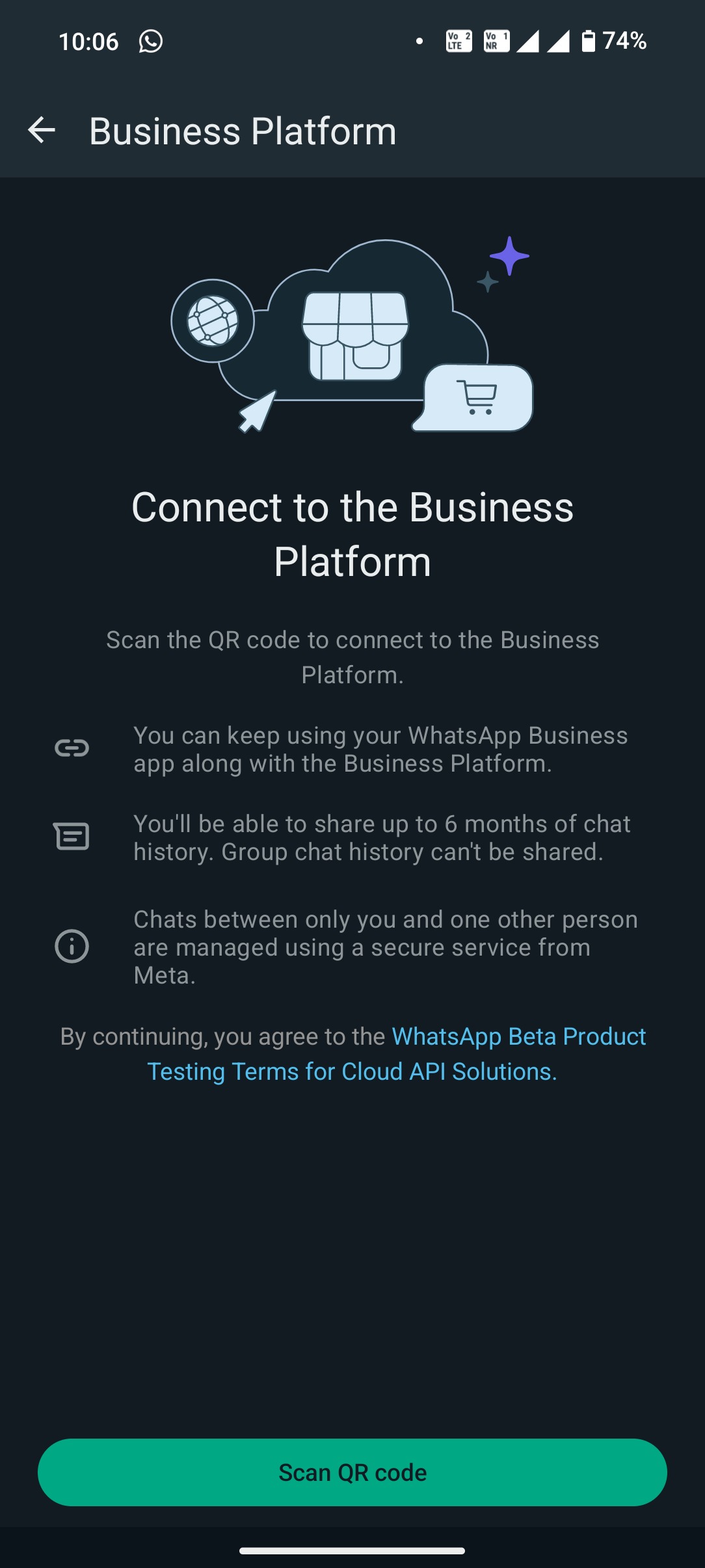
Connect to the Business Platform
Scan the QR code to complete the connection. You can continue using your WhatsApp Business App alongside the Business Platform.
 9
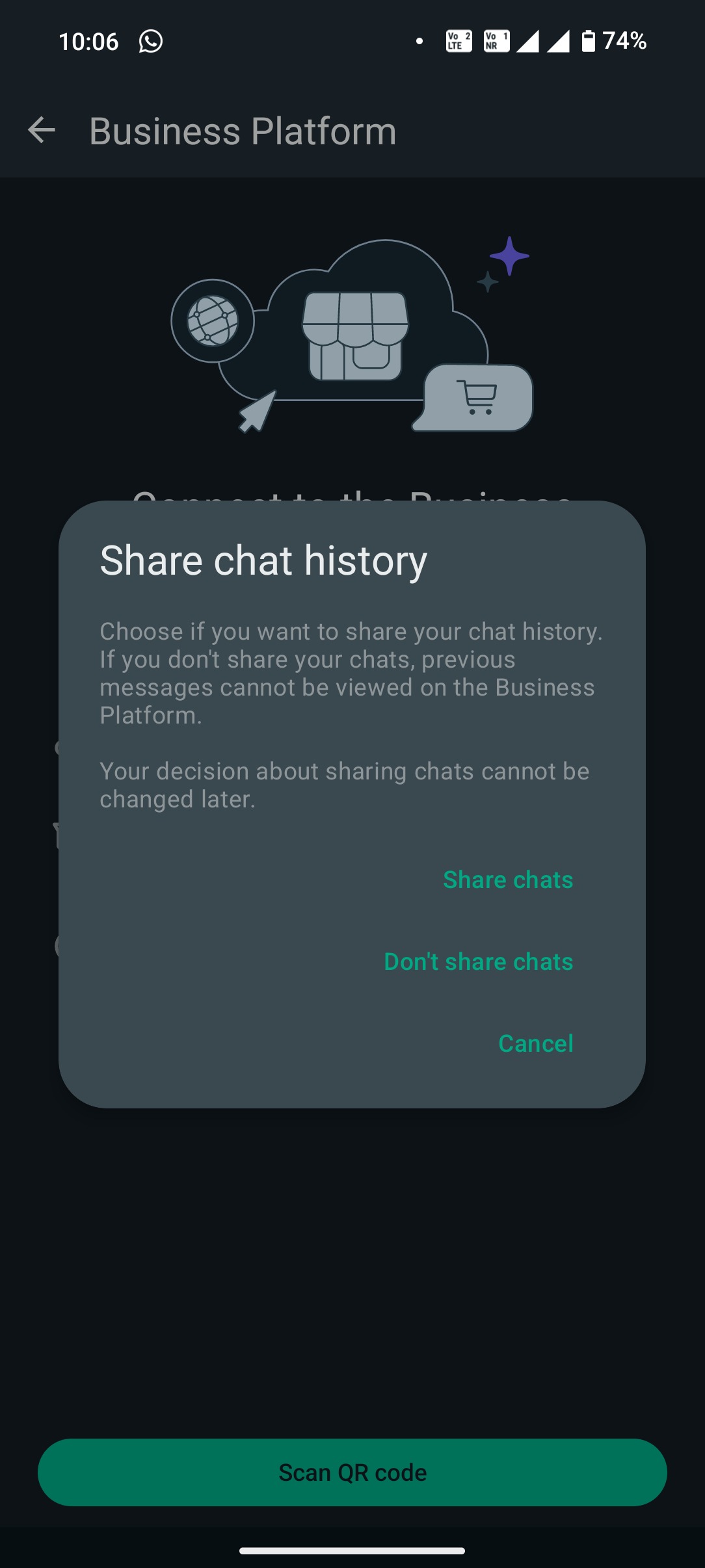
Share Chat History & Contacts
Your contacts and conversations will be securely synced with Open Doors.
 10
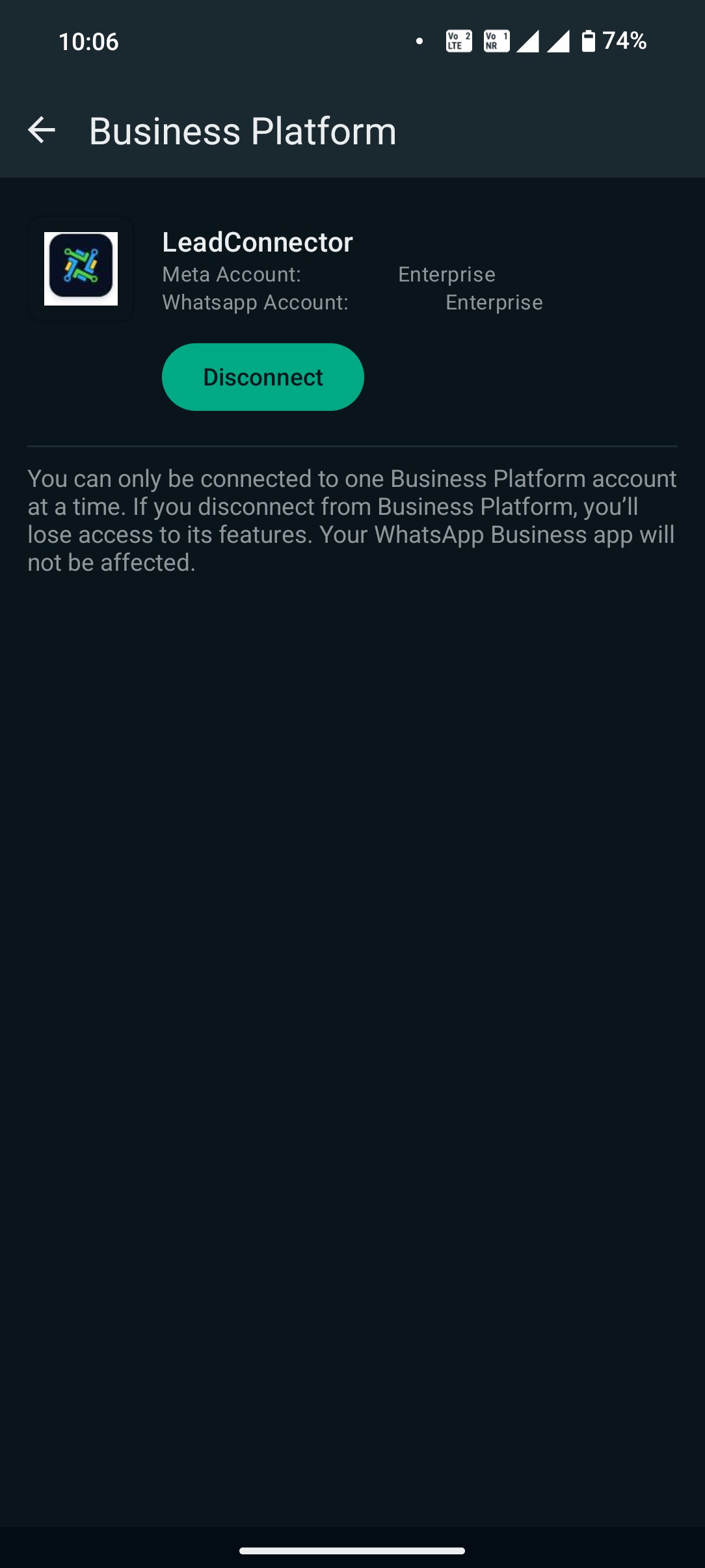
Setup Complete
Your WhatsApp Business App is now successfully integrated with Open Doors.
 11
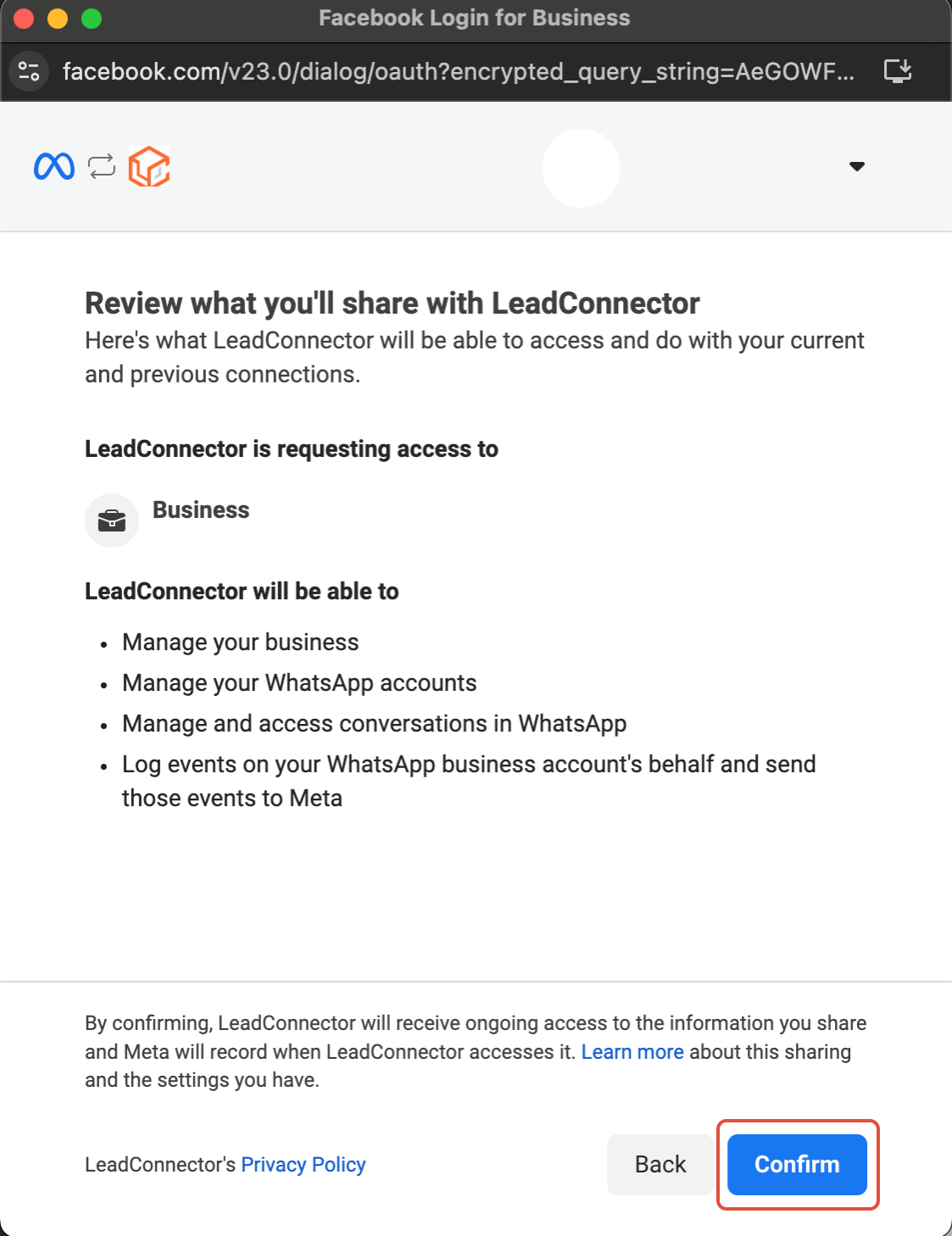
Review and Confirm
Check all entered details carefully, then click Confirm.
 ✓
Integration Complete
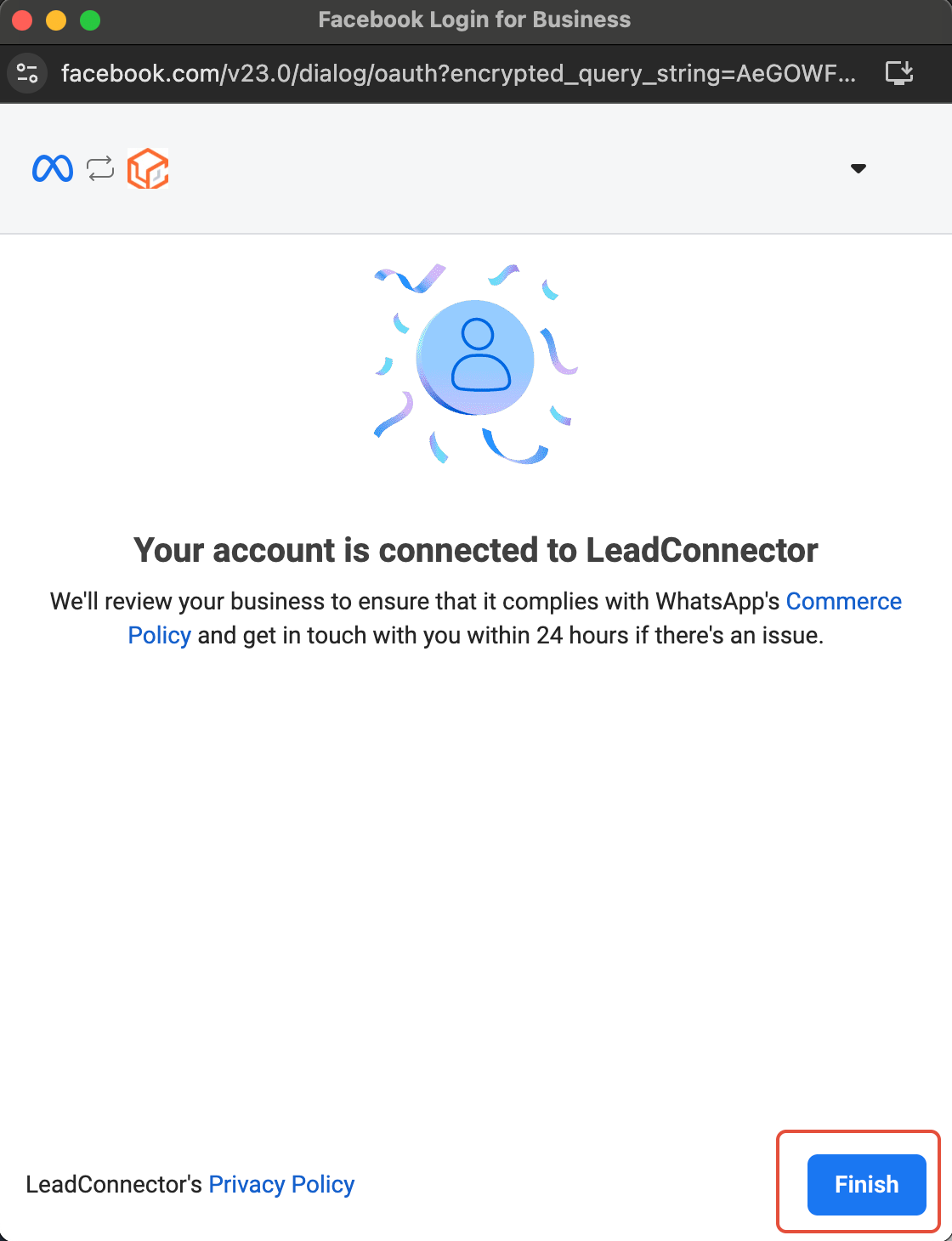
Click Finish. Your WhatsApp Business App is fully integrated with Open Doors.
NOTE 1. Sending template messages is not supported via the WhatsApp Business App, they can only be sent through the CRM. 2. You will manage your WhatsApp profile from the WhatsApp Business App, not the CRM. 3. You can only have a maximum of one phone number under Coexistence.Disconnect Disconnect WhatsApp Coexistence
When a number is connected through Coexistence, the sub-account does not show an option to disable or delete it from the CRM. The integration must be disconnected from the WhatsApp Business App on the mobile device.
1Open the WhatsApp Business App
On the phone linked to the Coexistence number, open the WhatsApp Business App.
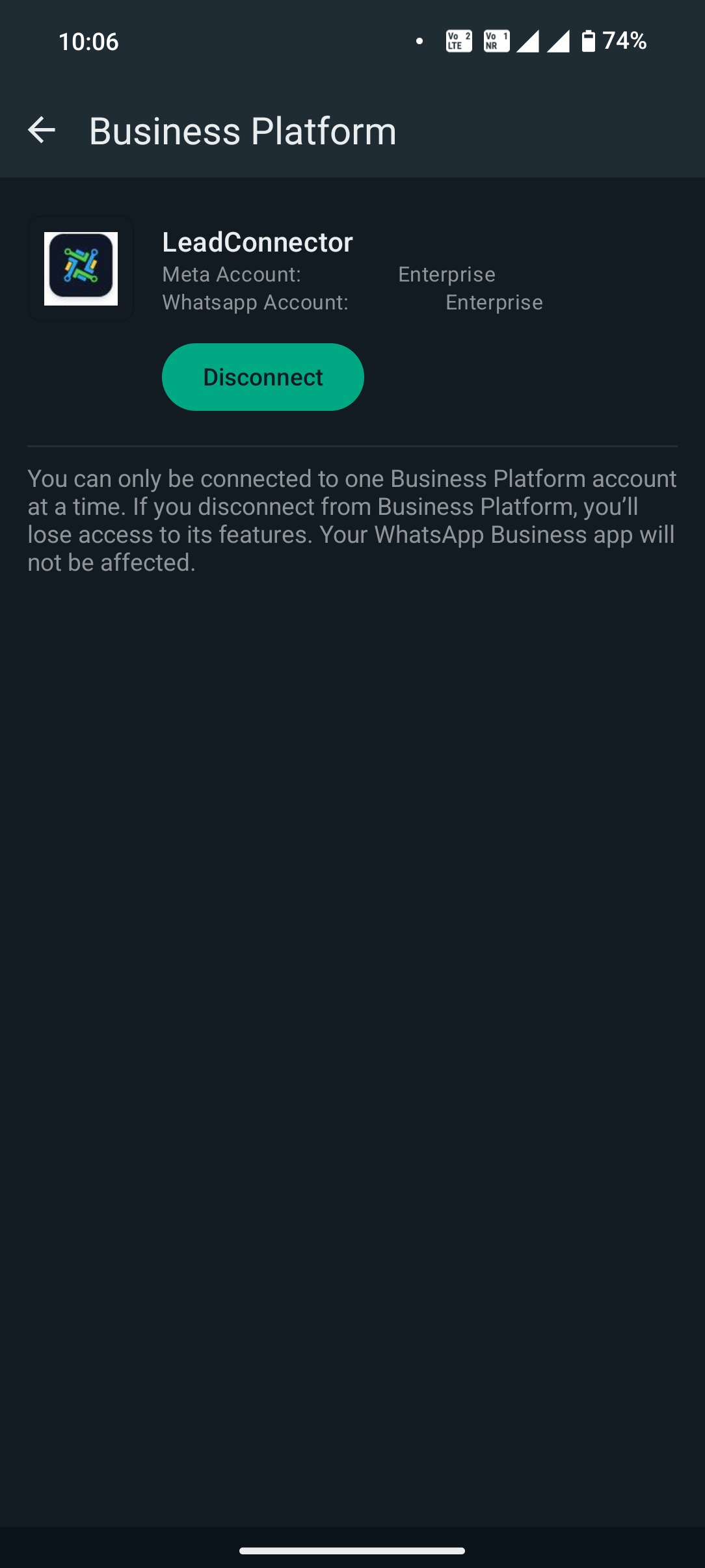
2Go to Business Platform
Navigate to Settings > Account > Business Platform.
3Click Disconnect
Under Open Doors, tap the Disconnect button and confirm to remove the integration.
 ✓
Disconnection Complete
The number is no longer connected to Open Doors. You can continue using it in the WhatsApp Business App as usual.
RELATED ARTICLE Delete Phone Number Connected to WhatsApp CoexistenceMethod 2 Connect a New WhatsApp Business Number1
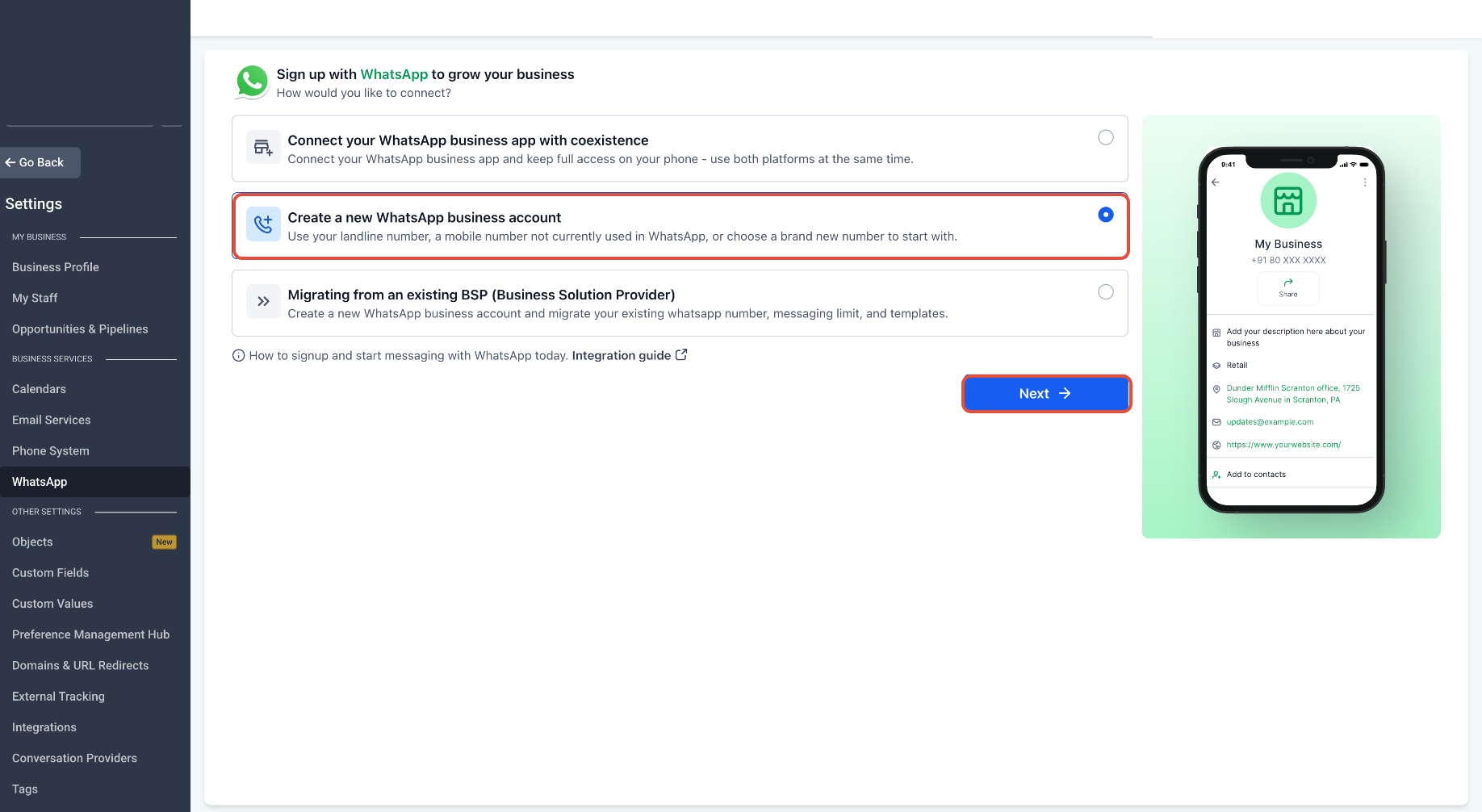
Start the Signup Process
Navigate to Settings > WhatsApp and click Create a new WhatsApp business account.
 2
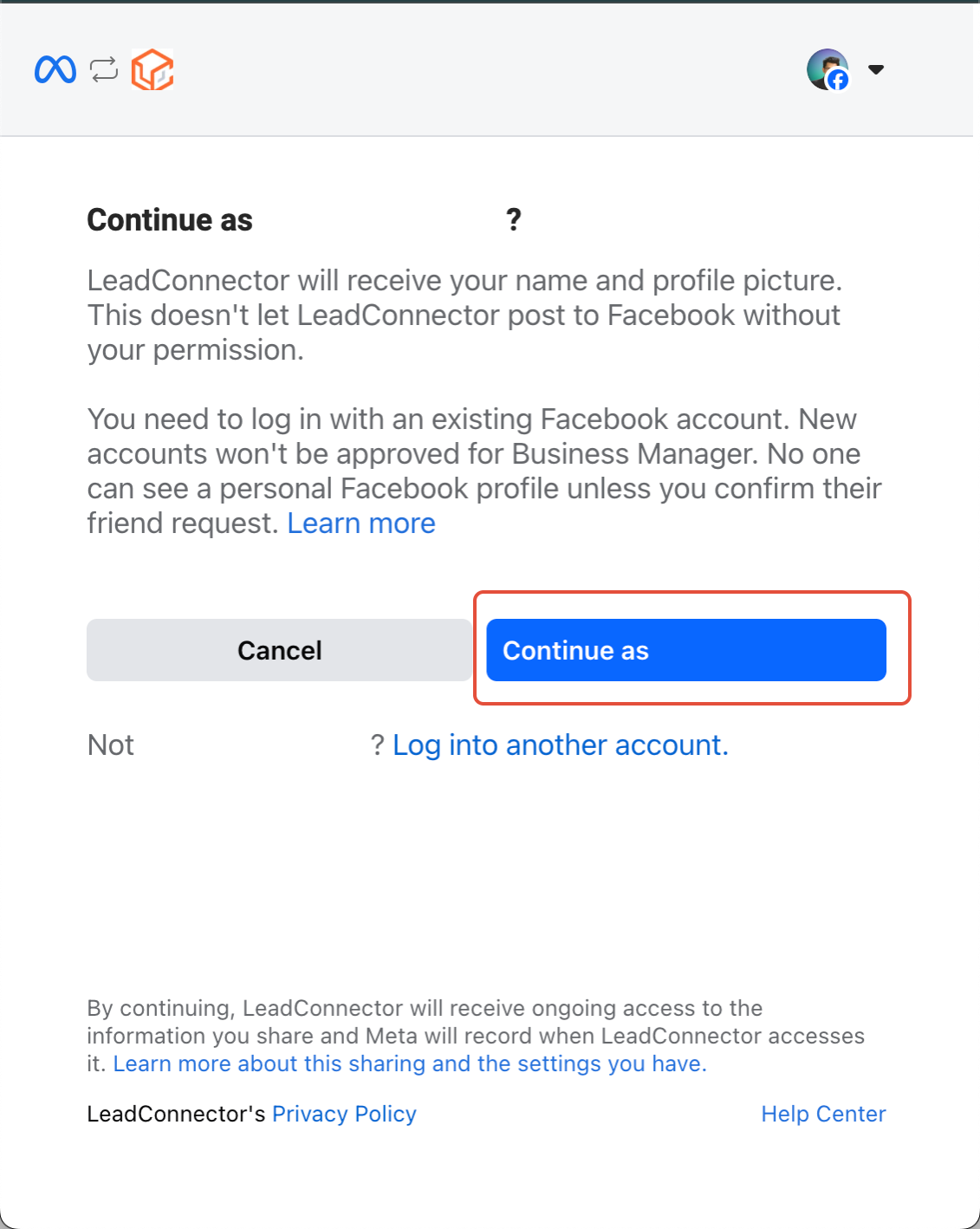
Continue with Facebook
Click Continue with Facebook and log in using the Facebook account associated with your business.
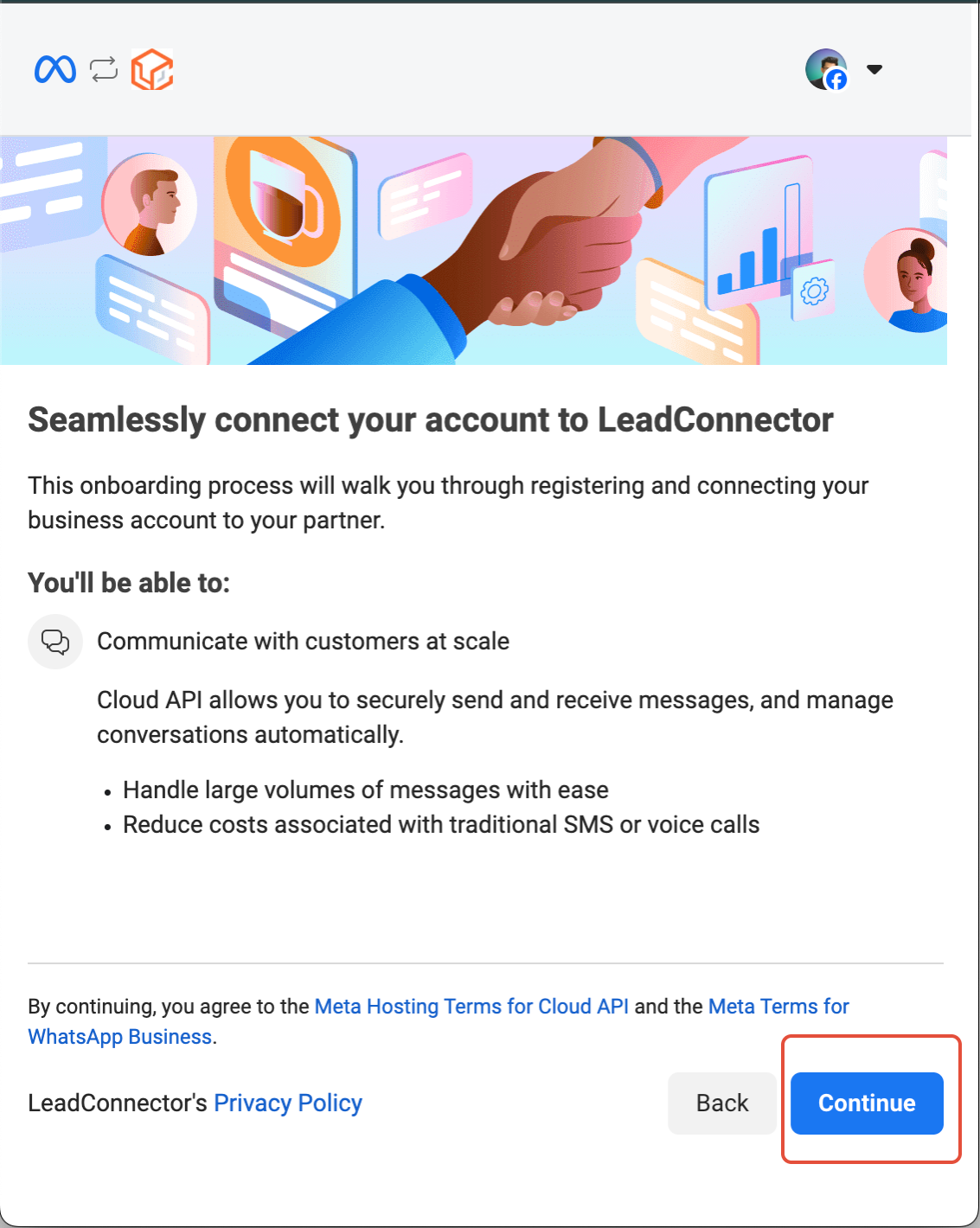
 3
Begin Setup
Tap Continue to initiate the integration process.
 4
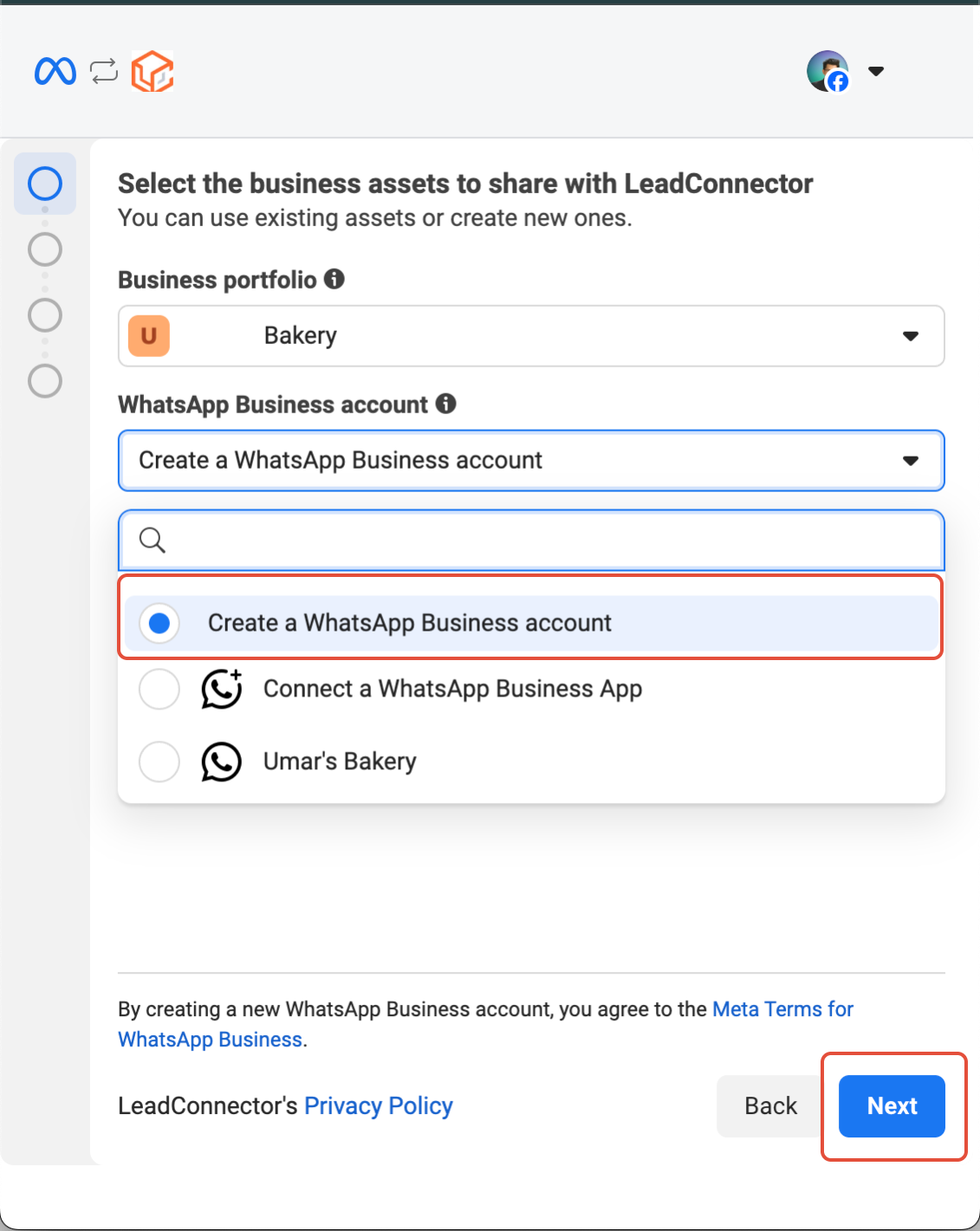
Enter Business Details
Fill in all required business information, select Create WhatsApp Business Account, then click Next.
 5
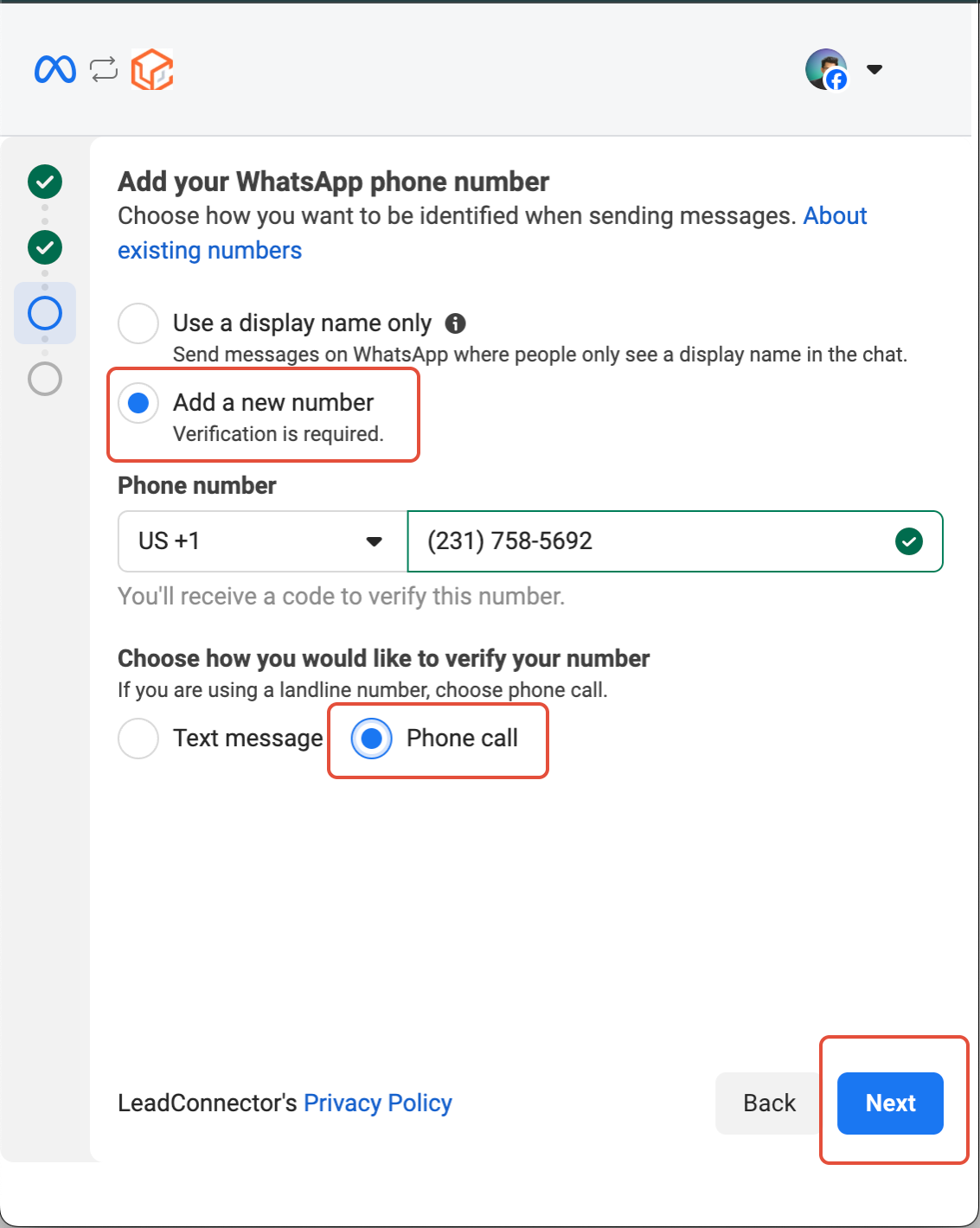
Add Your Phone Number
Enter the phone number you want to integrate. Make sure it's active and accessible for verification.
 6
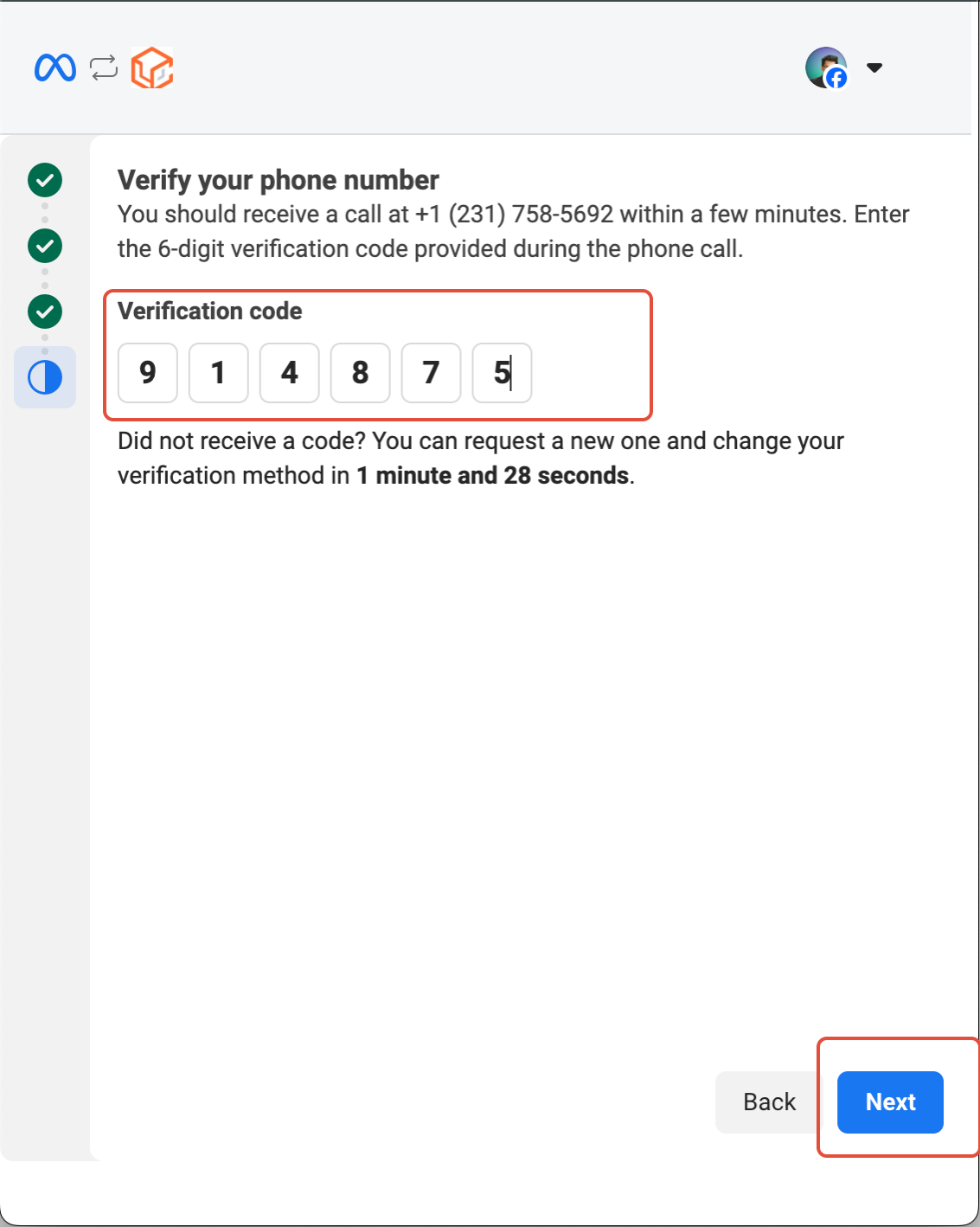
Verify via OTP
Enter the one-time password received by SMS or voice call, then click Next.
 7
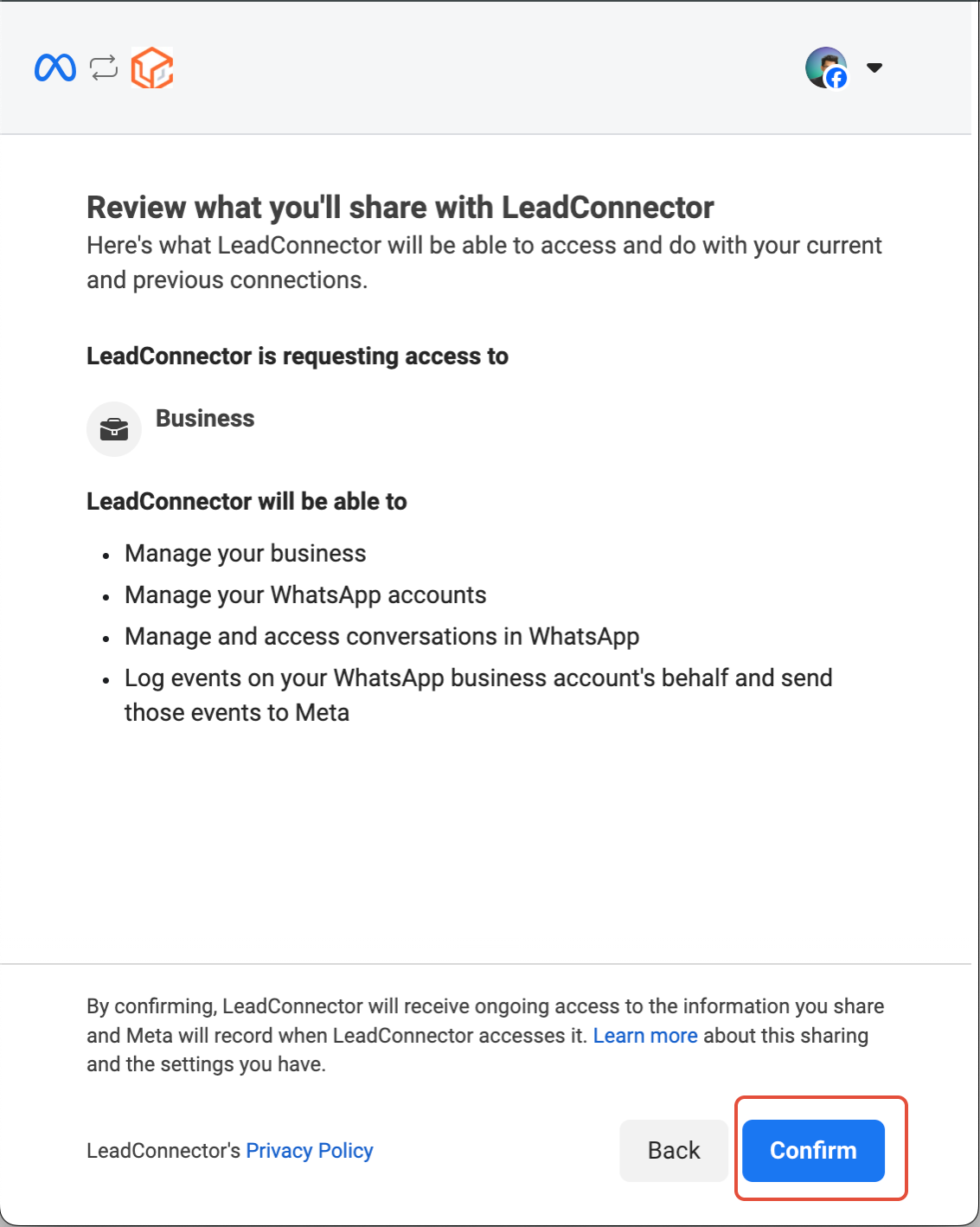
Review and Confirm
Check all entered details carefully, then click Confirm.
 ✓
Integration Complete
Your WhatsApp Business Account is now successfully integrated and ready to us
More in Setup
- WhatsApp FAQs
- Marketing Opt-out Button to Your Message Template
- WhatsApp - Workflow Integration
- Important Update: : WhatsApp Marketing Messages to U.S. Numbers Paused Starting April 1, 2025
- Important Update: WhatsApp Marketing Templates Pause in the U.S. Starting April 1, 2025
- WhatsApp 30 Days Free Subscription Trial Promotion
- WhatsApp Onboarding Failure: “Please create a new WhatsApp Business Account since a payment method already exists for the current WhatsApp Business Account”
- How to troubleshoot Failed to send OTP to verify Whatsapp number on the sub-account
- Whatsapp Error: Business account is restricted from messaging users in this country
- Whatsapp Error: Your WhatsApp Business account is locked. To unlock your account, visit Business Support Home
- Whatsapp Error : You have requested code too many times. Please try again later.
- WhatsApp Error: (#132000) Number of Parameters Does Not Match the Expected Number of Params